Miscellaneous events appear in gray rows. These are specialized commands for advanced automation tasks.
Inserts an empty line in the program log. Purely cosmetic — it does nothing on the air. Use it to visually separate sections of a clock, making it easier to read in ClockMaker or a text editor. Blank Line rows are shown at half height. The quickest way to add one is the + button at the right end of any row (“Insert blank line below”); you can also add one with New Event and choose Blank Line from the Miscellaneous list.
Fades the currently playing audio into the next event over a specified number of seconds, rather than letting it play to its natural end. Useful for joining a live event in progress, such as a church service that is being aired using the Live, or Live-For, command.
Parameters: A whole number of seconds for the fade duration.
With GetFile, AutoCast will play whichever file in a folder was modified the most recently, without knowing the name of the file in advance. Thus, things like school closures or other announcements can be recorded and dropped into the target folder without careful regard to filenames, and AutoCast will grab whichever recording was the last file updated.
Parameters: Path to the folder to watch.
Get to know this one! A super-smart file-fetching command. AutoCast looks in a specified folder for a file that is named for the specific day and time when it's scheduled to play. Click the ? button in the How Box to get the particulars on how to use this particularly-powerful command.
Parameters: Folder path, filename prefix, day/hour qualifier, file extension, and optional volume boost. The resulting path is assembled at the time the log runs.
Puts AutoCast into Live Assist mode (On) or takes it out (Off). In Live Assist mode, AutoCast ignores automatic time corrections when it is running automated, assuming that a live operator is on hand to keep things on track and on schedule. LiveAssist mode prevents AutoCast from automatically leaping past songs the staff announcer might be intending to play. While it's also possible for the staffer to manually put AutoCast into LiveAssist mode, automating that process is a way to assure it is turned on at the start of their show, and turned off at the end of their show (failing to exit LiveAssist after the hosted show ends will cause AutoCast to ignore time-corrects and Interrupts that keep things on-track for the rest of the day).
Parameters: On or Off.
Launches an external application or script at this point in the log. Can run in the foreground (AutoCast waits for it to finish) or background (AutoCast continues immediately). Be certain any app or script launched by this command is something that is safe to run!
Parameters: Path to the executable, optional command-line arguments, and a background checkbox.
Displays text or an image on a connected display — a touchscreen, wall monitor, or on-screen display. The content can come from a local file or a web address.
Parameters: A mode selector (Local File or Web URL), and either a file path (with Browse button) or a web address to fetch.
Triggers a VT (video/audio insert) from your automation system. The VT command precedes the Play or GetPlay command that specifies the file you want used for the voicetrack. Would you like a talkbed behind the voicetrack? You can specify search criteria for attribute and value that will find any audio files matching, for example, "Comment TalkBed" and rotate through them.
Parameters: Optional single attribute/value pair for a talkbed to be played beneath the voicetrack. Volume of the talkbed is set in the Audio portion of AutoCast settings.
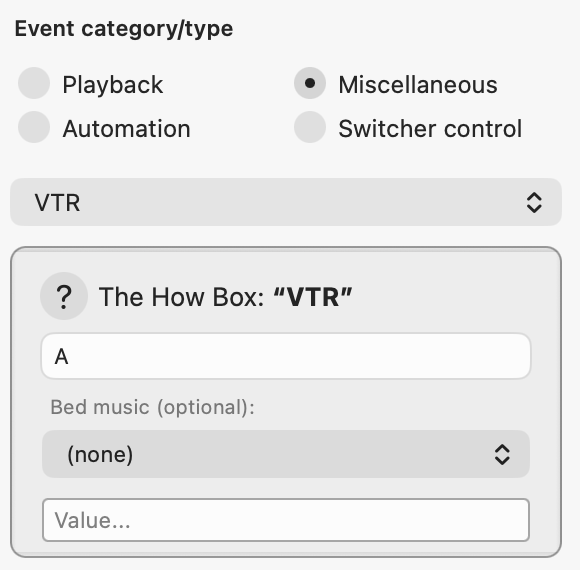
Marks a voicetrack slot in the clock for use with the optional VoiceTracker add-on. Each VTR event is identified by a single letter — A for the first voicetrack of the hour, B for the second, and so on. The letter is what tells VoiceTracker which slot in the hour the announcer is recording for.
If your station doesn't use VoiceTracker, you don't need to use VTR events. They're only meaningful when bundle generation is configured.
Parameters: A single letter (A, B, C, …) identifying the voicetrack slot, optionally followed by an attribute and value for a talkbed. The program log entry looks like # VTR A for the first slot of the hour, or # VTR A Comment TalkBed with a talkbed.
Talkbed (optional): Just as with VT, you can give VTR a search attribute and value, and AutoCast will find all audio files matching, for example, "Comment TalkBed" and rotate through them. The talkbed plays under the part of the voicetrack that's in the clear — after the song before it has finished, and before the next song starts. The overlaps with the songs on either side work exactly as they always do, and when the next song begins, AutoCast crossfades from the talkbed into it. In the VTR editor, enter the letter, then choose the attribute and type the value under Bed music (optional). Leave the bed set to (none) for a voicetrack without a talkbed.
Enables (On) or disables (Off) AutoCast's silence detection. When enabled, AutoCast monitors the audio output and triggers an alert or recovery action if silence is detected for longer than the threshold set in AutoCast's configuration.
Parameters: On or Off.