
ClockWork reads your music library from a tab-separated file (library.tsv) in your station's database folder. The library is the source of truth for music selection — every attribute you use in Random, Fill, and Rotate filters must match a column header in this file.
Press ⌘R at any time to reload the library from disk. Do this whenever TuneTracker's Library app has made changes — after importing new music, editing tags, rebuilding the TSV, or any time you notice match counts behaving unexpectedly.
During the reload, the status bar shows "Reloading your library information…" and the speaker icon flashes gold. When it finishes, the bar shows the new entry count. All three main tabs respond to the reload: ClockMaker re-validates events, MasterBuilder re-validates all master logs, and TuneStacker updates its track list. The Editor rebuilds its folder dropdown.
ClockWork loads the library on a background thread so the app remains responsive during the load. On first launch, there's a brief moment where the library shows as "not loaded" — this is normal. The status bar will update when loading completes.
The idle status bar text always shows your current library summary: "Library: 6,002 entries (18 fields)". If the library could not be loaded, the same spot shows Library: followed by the reason (see Troubleshooting). Hover over the status bar to see a description of what it means.
ClockWork supports app-wide text scaling from 70% to 200%. This scales all interface fonts proportionally and adjusts table row heights to match.
The current scale percentage is shown in the status bar while you adjust it. The setting persists between launches. The How Box in ClockMaker is excluded from scaling — its layout is carefully sized to fit its controls and remains at the default size regardless of the app-wide scale.
The lists in each tab (the clock list, master log list, program log list, the event table and The Editor's log) also have their own text size control: right-click the list and choose Adjust Text Size.
ClockWork stores its settings in a JSON file inside your station folder at Misc/System/Settings/. If this directory doesn't exist, ClockWork creates it automatically on first launch. Settings include text scale, log list font sizes, and Proximity Guard separation values. You generally don't need to touch this file directly. The settings you change yourself — VoiceTracker, Rotations, preview audio and Appearance — are described in Settings & Menus.
Press ⌘L to reveal a hidden Logging tab that shows diagnostic output from TuneStacker generation runs. If a generation fails or produces unexpected results, the Logging tab is the first place to look. The Clear button wipes the output; Copy copies everything to the clipboard so you can paste it into an email or support request.
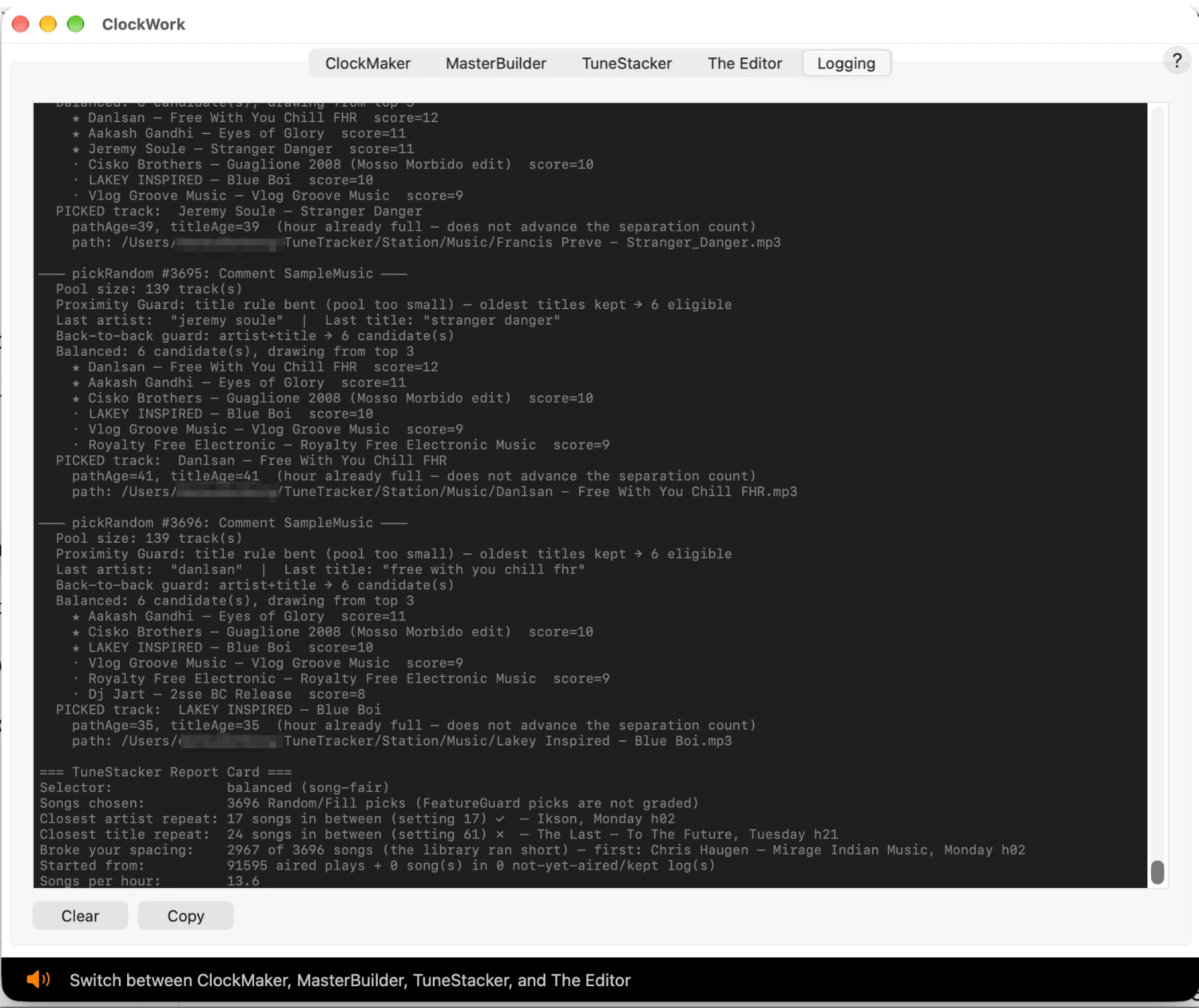
The log is kept in memory (up to 500,000 characters) and auto-trims the oldest content when it overflows. It does not persist between launches.