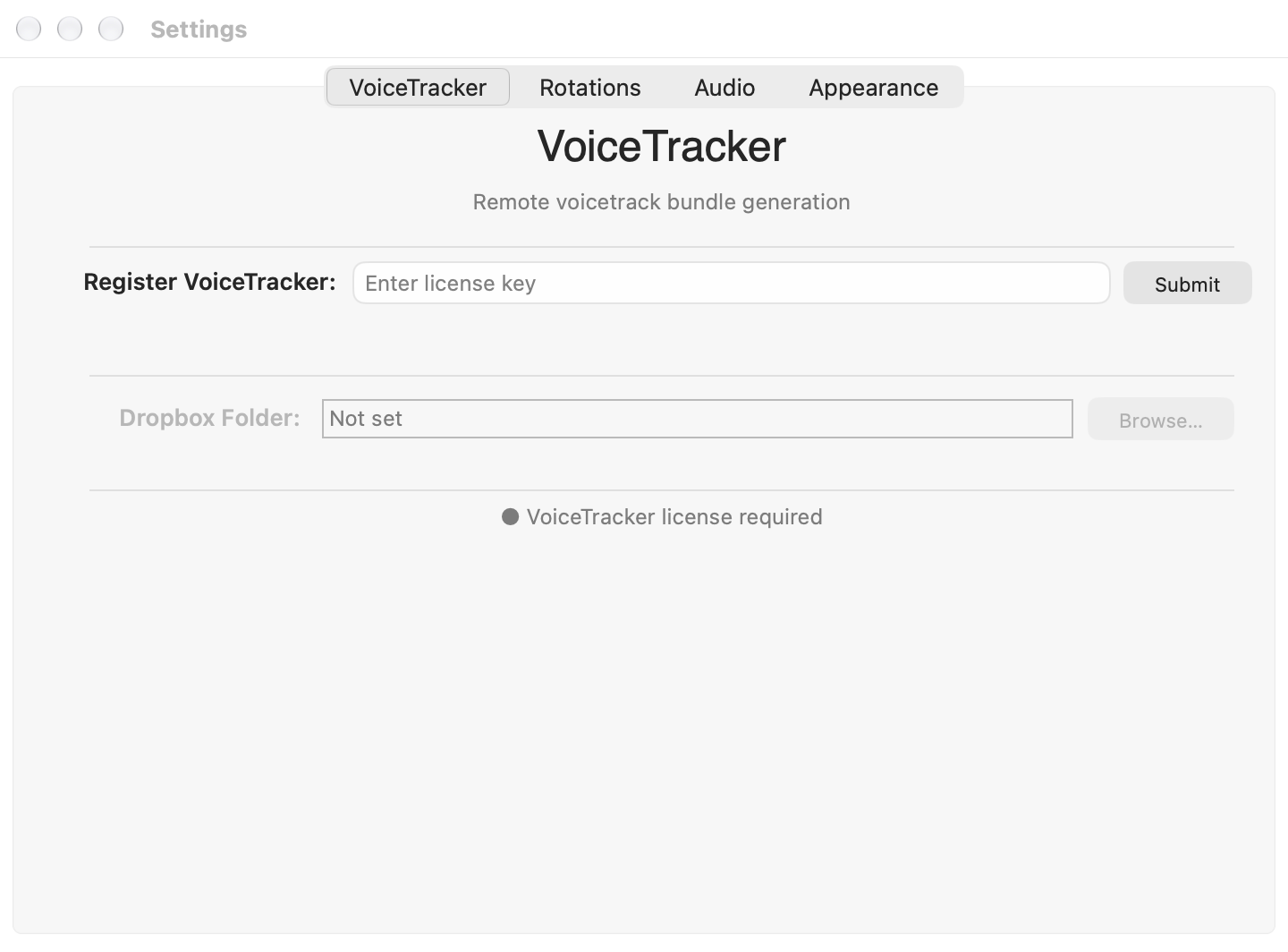
Open ClockWork's settings with ClockWork ▸ Settings… or press ⌘T. The Settings window has four tabs: VoiceTracker, Rotations, Audio and Appearance. Changes take effect right away; there is no Save button.
Where you register your VoiceTracker license key and choose the folder ClockWork writes VoiceTracker's files into. See VoiceTracker for the details.
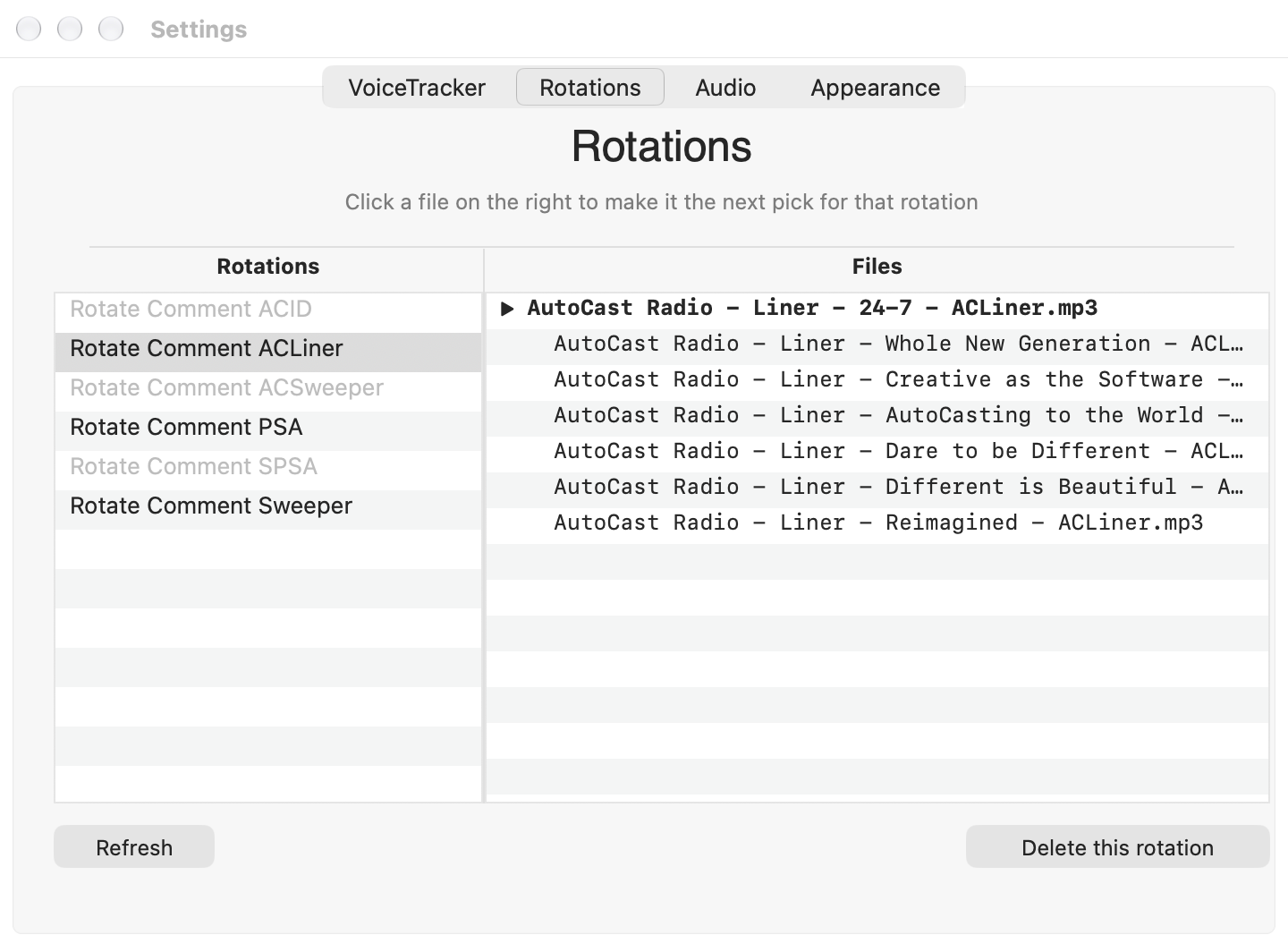
Every Rotate event keeps its own place in line, like a cart machine remembering which cart plays next. The Rotations tab lets you see that place, and move it.
This is handy when you move to ClockWork from another automation system and want a rotation to carry on from where the old system left off, or when you reorganize your library and want to re-anchor a rotation. Hover over a file to see its full path.
Two buttons sit under the lists. Refresh reloads the list from disk, which is useful if TuneStacker has just run. Delete this rotation removes the selected rotation after asking you to confirm; the next time TuneStacker runs, it rebuilds that rotation from scratch, starting alphabetically.
A rotation whose filter no longer matches any songs stays in the list, shown in gray. Select it and the right side reads No files currently available for this rotation. Songs you add to your library later are placed at the end of the line the next time TuneStacker generates logs, so the rotation's place isn't disturbed.
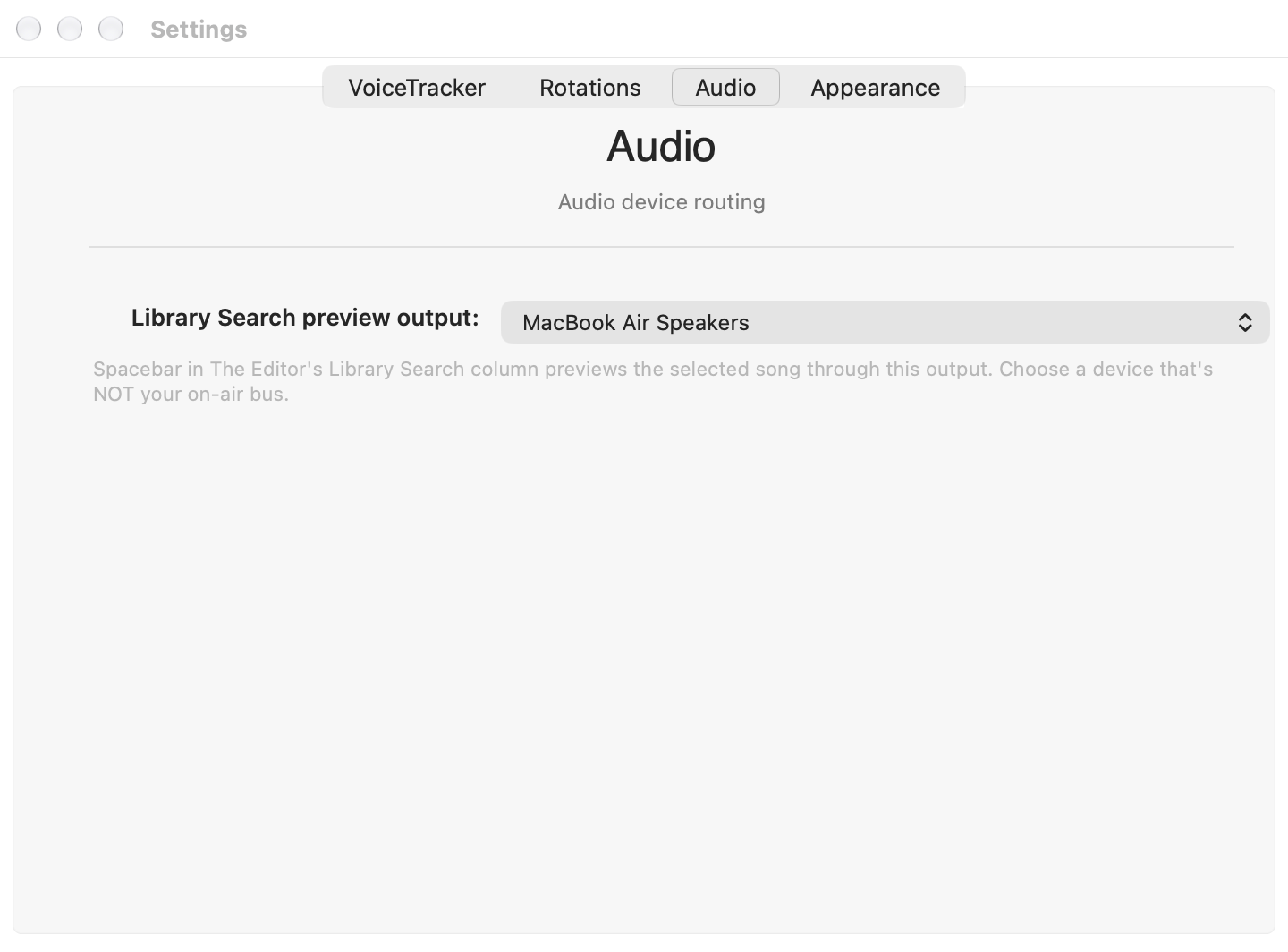
Choose the output device used for Library Search preview — the spacebar audition in The Editor. Pick a device that is not your on-air bus, or choose (none — preview disabled) to turn the spacebar preview off.
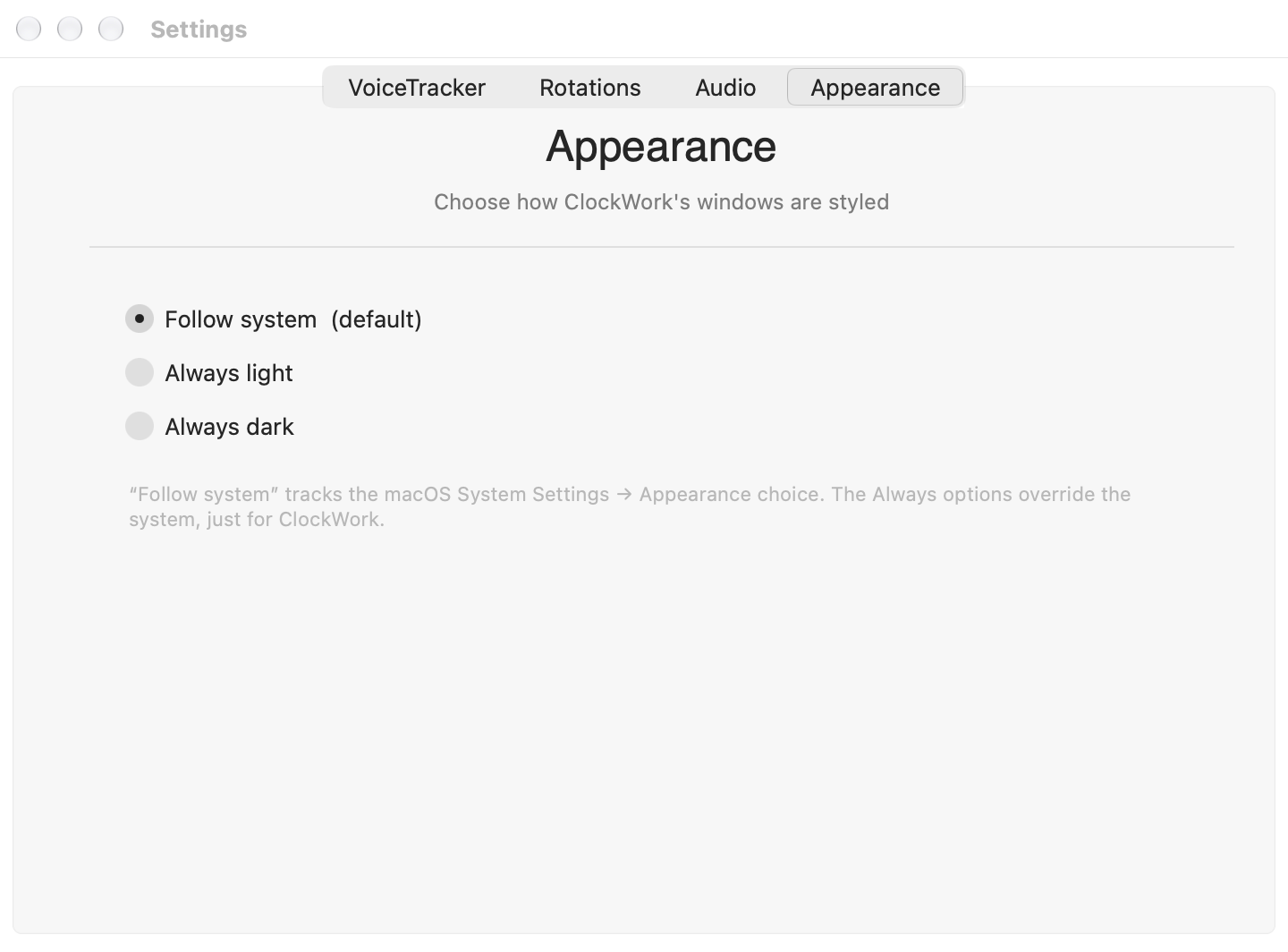
Choose how ClockWork's windows are styled:
The row colors in ClockMaker (green, blue, gray, blue-purple) stay the same in both appearances, so a clock looks familiar either way.
| Menu item | What it does |
|---|---|
| ClockWork ▸ About ClockWork | Shows the version number you're running. |
| ClockWork ▸ What's New… | Opens a small window with the release notes for the version you're running, so you can see what changed after an update. It needs an internet connection. |
| ClockWork ▸ Settings… (⌘T) | Opens the Settings window described above. |
| ClockWork ▸ Check for Updates… | Looks for a newer version of ClockWork and offers to install it. |
| Edit ▸ Undo / Redo / Cut / Copy / Paste / Delete / Select All | Work in text fields and in the ClockMaker event table. See Undoing a Change. |
| View ▸ Zoom In / Zoom Out / Actual Size (⌘+ ⌘− ⌘0) | Changes the text size throughout the app. See Text Scaling. |
| View ▸ Refresh Library (⌘R) | Reloads your music library from disk. See Refreshing the Library. |
| View ▸ Toggle Logging Tab (⌘L) | Shows or hides the Logging tab with TuneStacker's diagnostic output. See The Logging Tab. |
| Help ▸ ClockWork Help | Opens this help. |