About five minutes to read, one second to do. You’ll need a voice clip and a music clip.
What Is Ducking?
Listen to any commercial, promo, or podcast intro. There’s usually music underneath the voice. Now listen to what the music does: when the voice starts talking, it drops back, and when the voice pauses or finishes, it swells up again. That’s ducking: the music ducks its head so the voice can be heard.
It matters because of a simple problem. Music is made to be listened to, and it’s full of the same frequencies a voice uses, so a music bed at a comfortable level will happily drown out a speaker. Turn the music down far enough to hear every word and it sounds thin and sad. Ducking gives you the best of both: music at full strength when nobody’s talking, and tucked neatly underneath when somebody is.
Why It’s Such a Timesaver
Done by hand, ducking is tedious. For every phrase the narrator speaks you’d add four points to the music’s volume line, drag them to the right places, and set them to the right depth. A 60-second spot with six phrases is two dozen points. Then the client changes a word, you nudge one clip half a second, and every dip after it is in the wrong place. Do it all again.
With FastTracker it takes one key, and it’s never out of date: when you move, trim, split, or delete a voice clip, the music’s dip follows by itself. You can rearrange a whole spot and the ducking stays exactly where it belongs, without you thinking about it.
How to Duck
1Arrange your tracks so the voice is on the track directly above the music. (This is the natural way to lay out a spot, with the voice on top, but it matters: see below.)
2Click the music clip to select it.
3Tap D.
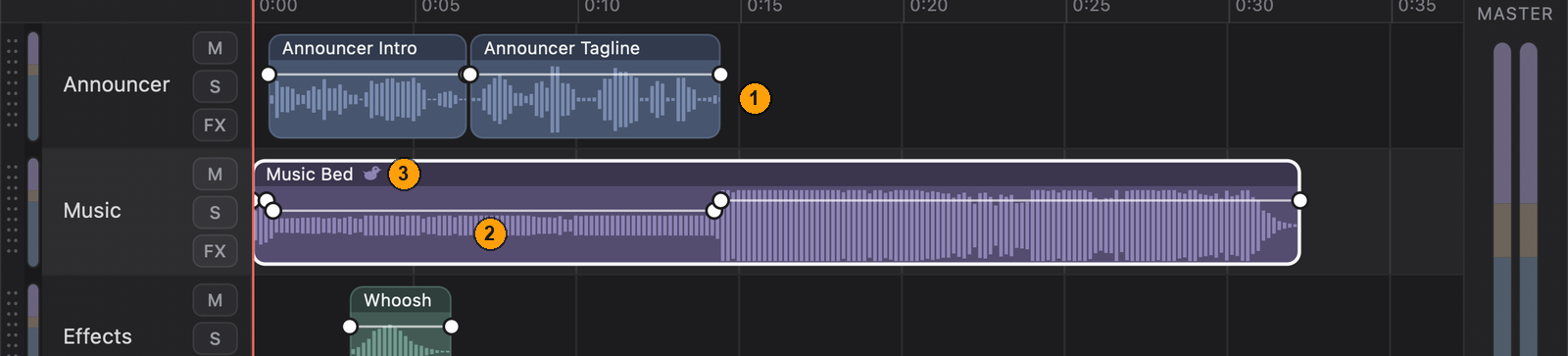
The voice is on the track above (1). The music’s volume line dips under the voice (2), and a little rubber duck marks the clip as ducked (3).
That’s all. The music’s volume line dips wherever there’s a clip on the track above it, and the little rubber duck beside the clip’s name tells you it’s ducked. Press play and listen.
💡
You can duck any clip under whatever is on the track above it: music under a narrator, a sound effect bed under a voice, even a quiet ambience under a sound effect.
What Exactly It Does
It’s masked. The old rule is “never let them hear you duck,” so the dip is timed to hide behind the voice. The music doesn’t move until the first word has begun, is fully down within the first syllable, and starts coming back up in the voice’s last moments, so it’s back at full level just as the voice finishes.
It doesn’t pump. If the voice pauses for less than a second between phrases, the music stays down instead of bobbing up and down between every sentence.
It’s 11 dB deep by default: clearly still there, comfortably beneath the voice. You can change that (see below).
Only the track directly above counts. A clip two tracks up, or one on a track below the music, doesn’t duck it. That keeps a sound effect on some other track from ducking your music by accident.
It respects your own volume line. If you’ve already drawn a fade-in or fade-out, it stays; the duck is laid over it.
It follows the voice. Move, trim, split, or delete the voice clip, paste a copy, or reorder the tracks, and the dip is redone for you the moment you let go. One ⌘Z undoes the move and its dip together.
Choosing How Deep
Open FastTracker ▸ Settings… and click the Ducking tab. The Duck depth slider goes from −24 dB (deep: the music nearly disappears) to −6 dB (gentle: a polite nod). The default, −11 dB, is a good place to start for most voice-and-music work. Move the slider and every ducked clip in your project updates at once.
Taking It Off, and Doing It by Hand
Take it off: select the music and tap ⇧D (Shift-D). The volume line goes back exactly as it was before.
Want a different dip in one spot? The dip is made of ordinary points on the volume line, so you can drag them like any others. Once you do, that clip stops following the voice automatically, and its points are yours to keep. Tap D again to hand it back to FastTracker.
The status bar tells you what happened: “Ducked ‘Music Bed’ under the track above (−11 dB).”
Tips
💡
Trim your voice clips close to the words. The dip is timed to the edges of the voice clip, not to the individual sounds inside it. A breath or a silent gap at the start or end of the clip would put the dip out in the open, where it can be heard. Tightly trimmed voice clips make ducking invisible. The quick way: select your voice clips and tap T, which trims the silence off every end at once. The music’s dip follows the new edges by itself.
Inside a voice clip, FastTracker ducks right through any pause. If a long pause in the middle should let the music come up, split the voice clip there (S) and delete the silence.
Pressed D and nothing seems to happen? Check that there’s a clip on the track directly above the music. With nothing there yet, the music is marked and will duck the moment one appears.
On the top track there’s nothing above to duck for, so D beeps and says so.