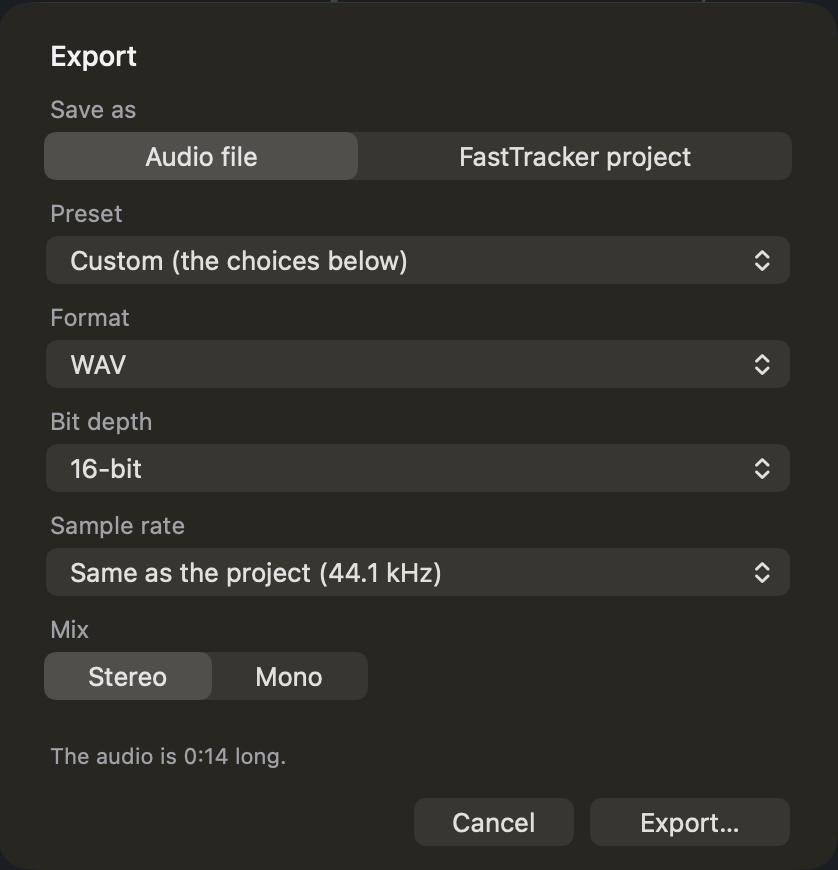
Press the orange Export button (lower right), or ⌘E, choose your settings, press Export…, and name the file. FastTracker mixes the whole project exactly as it sounds, including faders, volume and pan lines, effects, and their tails. A progress bar shows the mixing, and Cancel stops it without leaving a partial file behind. (In Single Track Mode, effects in the Effects Deck are heard while you play but are not in the saved or exported audio unless you used Apply.) Your choices are remembered for next time. (File ▸ Save As… works a little differently in each mode; see below.)
How you save depends on the mode:
In the window with the question at the top:
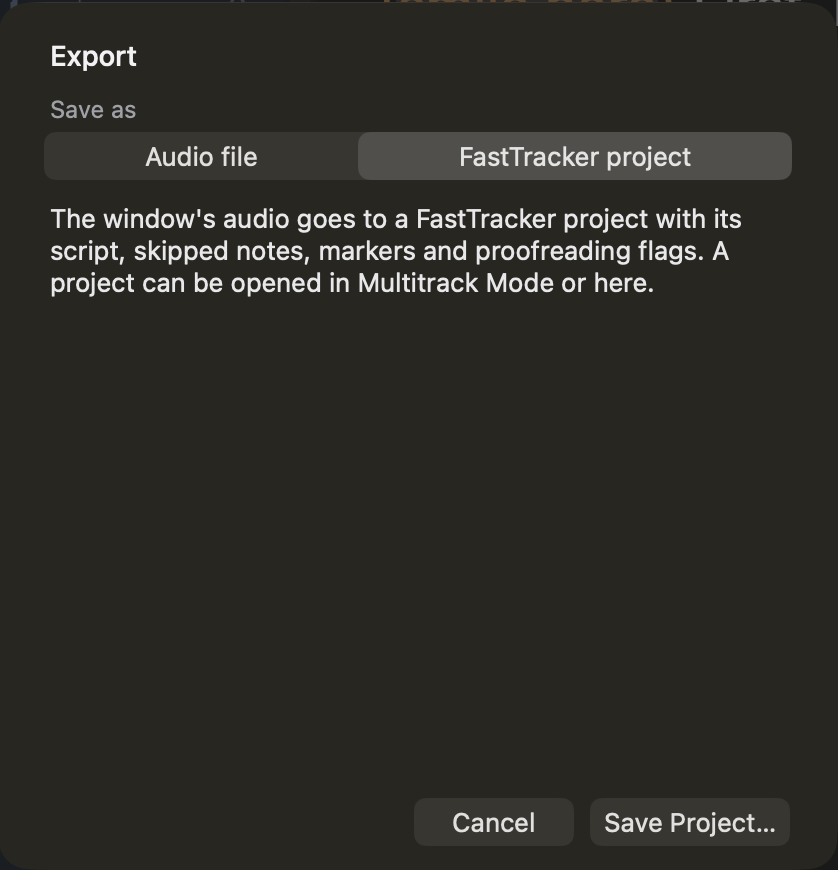
.fast project you can open again and keep working on. The button reads Save Project…. From the Single Track Mode window, the window’s audio first goes onto Track 1 of a new project.The Export window opens on Audio file; the Multitrack Mode ⇧⌘S window opens on FastTracker project. Change it with one click.
An audio file has no place to keep a script or Follow-Along’s proofreading flags, so FastTracker keeps them in a small companion file. If your recording has a script or flags and you save or export audio, a question asks “Save this file’s script and any error checking flags associated with it?” Its buttons are Yes, No and Cancel, and a Don’t ask again box.
Choosing Yes writes a file beside the audio with the same name and the extension .ftdata: “Show 12.mp3” gets “Show 12.ftdata”, and a WAV and an MP3 of the same recording share one. Keep the two together. Next time you open that audio file in Single Track Mode, FastTracker loads its script and flags again by itself (the status bar says Loaded this file’s script and flags.). If a .ftdata file is already beside the audio, ⌘S refreshes it without asking. The .ftdata file also remembers the file’s Effects Deck, which comes back switched off. Multitrack exports work the same way.
You can settle the question once in FastTracker ▸ Settings ▸ General, under Script and flags beside exported audio: Ask each time, Always save them or Never save them.
In Multitrack Mode, ⌘S saves the project. In the Single Track Mode window it quietly saves over the audio file it came from, in that file’s own format. If the window has no file yet, it opens this window instead.
With a selection marked, the Export window has a Range choice: Marked Selection (the default) or Whole Project. Marked Selection exports exactly what you marked, on the one track or on every track the selection covers, with a very short fade at each edge so it doesn’t click, and effect tails ringing out past the end. In the Single Track Mode window there is only the one file, so mark a selection first if you want to save just that part.
| Setting | Choices |
|---|---|
| Preset | A one-click shortcut for places that ask for a particular file: LibriVox (MP3, 128 kbps, 44.1 kHz, mono) and ACX / Audible (MP3, 192 kbps, 44.1 kHz, mono). It sets the choices below for you; change any of them and the menu goes back to Custom. |
| Format | WAV, AIFF, FLAC (lossless), AAC (M4A), Apple Lossless (M4A), or MP3. |
| Bit depth | 16-bit or 24-bit. WAV also offers 32-bit float, which keeps even peaks above full scale. 16-bit files are dithered. AAC and MP3 have no bit depth; they have a Bit rate instead: 128, 192, 256 or 320 kbps for AAC, and 64, 96, 128, 160, 192, 256 or 320 kbps for MP3 (always constant bit rate). |
| Sample rate | Same as the project (shown, for example 44.1 kHz), 44.1 kHz, or 48 kHz. A different rate than the project’s is converted with Apple’s highest-quality converter. |
| Mix | Stereo, or Mono (the average of left and right). |
A situation that warrants 48 kHz, 24-bit WAV files: choose WAV, 24-bit, 48 kHz. Done.
When you click Export, FastTracker first checks how the mix will come out, right then. If the quick check finds nothing wrong, the Save window opens at once. If the mix would be louder than full scale (so loud it would distort in the file), the Export window says so before anything is written: “The overall volume is going to be too high to avoid distortion. Should I adjust the master volume to a safe level before exporting?”
Adjust Master and Export lowers the master fader by just enough to put the loudest peak at −0.1 dB (−1 dB for AAC and MP3), then exports. You will see the master fader move, and the window tells you how far. Export As Is leaves the master alone and writes the file anyway. Cancel takes you back to the export settings.
A WAV in 32-bit float cannot distort, so it is not checked at all. It keeps everything intact, so you can lower it later.
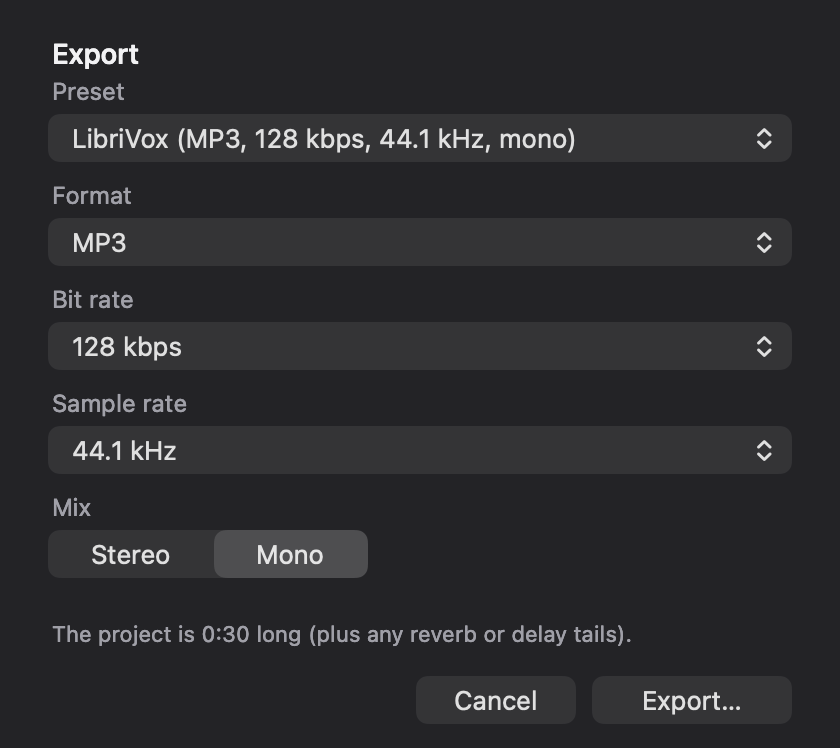
Choose MP3 as the format and pick a bit rate. FastTracker writes a constant-bit-rate file at 44.1 or 48 kHz, in mono or stereo. If your project runs at some other rate, the MP3 is made at 44.1 kHz.
Two presets set it all up in one click: LibriVox (128 kbps, 44.1 kHz, mono) and ACX / Audible (192 kbps, 44.1 kHz, mono). Pair the LibriVox preset with the LibriVox recipe in the Cookbook, which sets your voice to the loudness LibriVox asks for.
MP3 is a lossy format, so keep a WAV of your finished work too. Export the MP3 last, once you’re happy with everything else.