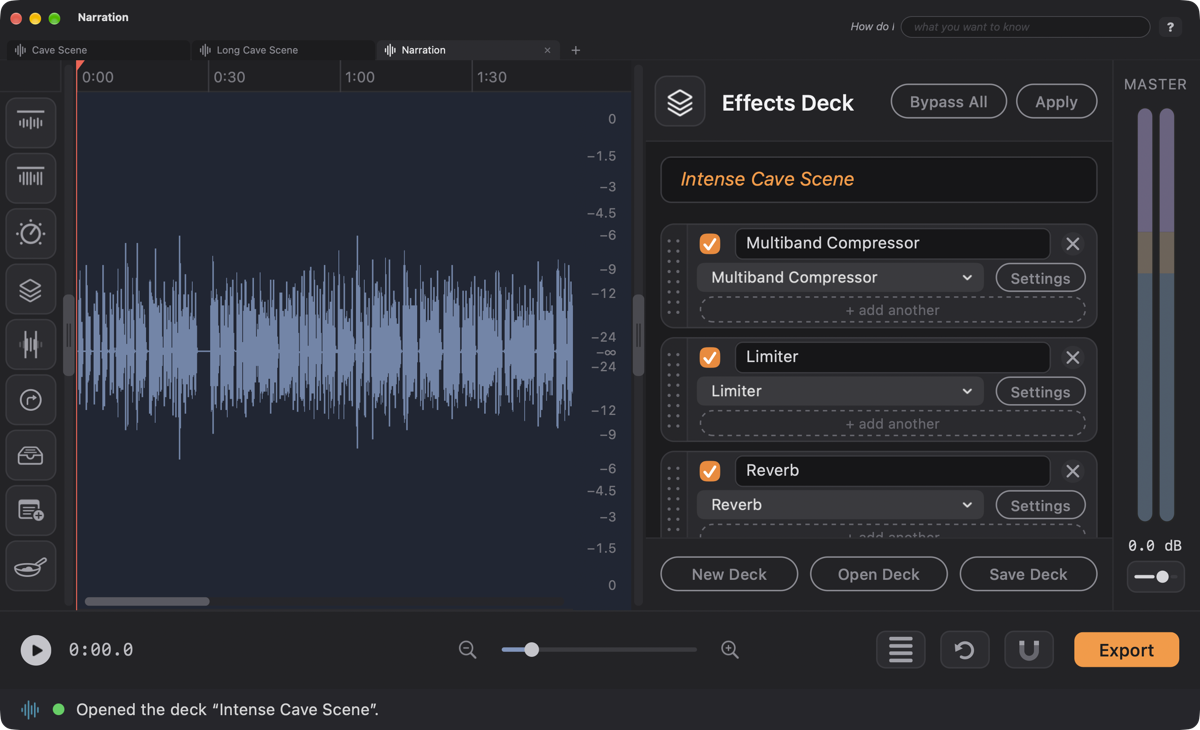
The Effects Deck is where effects live. It is a drawer at the right edge of the window, in Single Track Mode and in Multitrack Mode alike, holding a deck of effect cards. Each card is one effect (a reverb, a compressor, an EQ). Switch cards on, stack them, put them in the order you like, save the whole deck, and, in Single Track Mode, Apply it to put the effects into the audio.
The effects are the audio effects built into your Mac by Apple, the same ones Lesson 5 uses to polish a voice.
One Effects Deck, in every TuneTracker product. The Effects Deck is the same feature in FastTracker, AutoCast and SignalCaster (FastTracker has it now; the other two are getting it), so you only learn it once. Decks are shared too: the custom stack of effects you design here is saved where all your TuneTracker products can find it, so the same deck can go with you from one product to the next.
The Effects Deck shares the drawer with the Script, the Cookbook, ClipView and the Keyboard Guide, one at a time.
At the top are the name Effects Deck and two pill buttons: Bypass All (gray, and orange while the effects are bypassed) and Apply (dimmed when nothing is switched on; it is not in Multitrack Mode). Under them is a darker bar where you type the deck’s name; it reads Give this deck a name until you do. Then come the cards, which scroll. Pinned at the bottom are New Deck, Open Deck and Save Deck.
The cards are compact, so about three fit before the list scrolls. The drawer opens fairly narrow, and you can drag its left edge to make it narrower still.
Each card has:
A deck holds up to 12 cards; at 12, every “+ add another” says We’re maxed out! There is always at least one card.
Click + add another. The list of effects opens by itself. Pick one and that effect’s own window opens, with all its controls; you can leave it open and adjust it while you listen. Close it, and the cursor lands in the card’s name box, ready for a name. (If you dismiss the list without choosing, you still get an empty card. It passes the sound through unchanged, and it stays until you remove it.)
Cards that are switched on are heard live whenever you play: a selection plays with the effects, and so does the whole file. A reverb or echo keeps ringing after the selection ends, as it would in a room. Effects are never heard while you are recording; what you record goes in dry.
Hearing an effect is not the same as having it in the audio. Save and Export write the audio without the effects, unless you used Apply (below). FastTracker does not warn you about this.
Apply puts the effects into the actual waveform: into the selection if you have marked one, otherwise into the whole file.
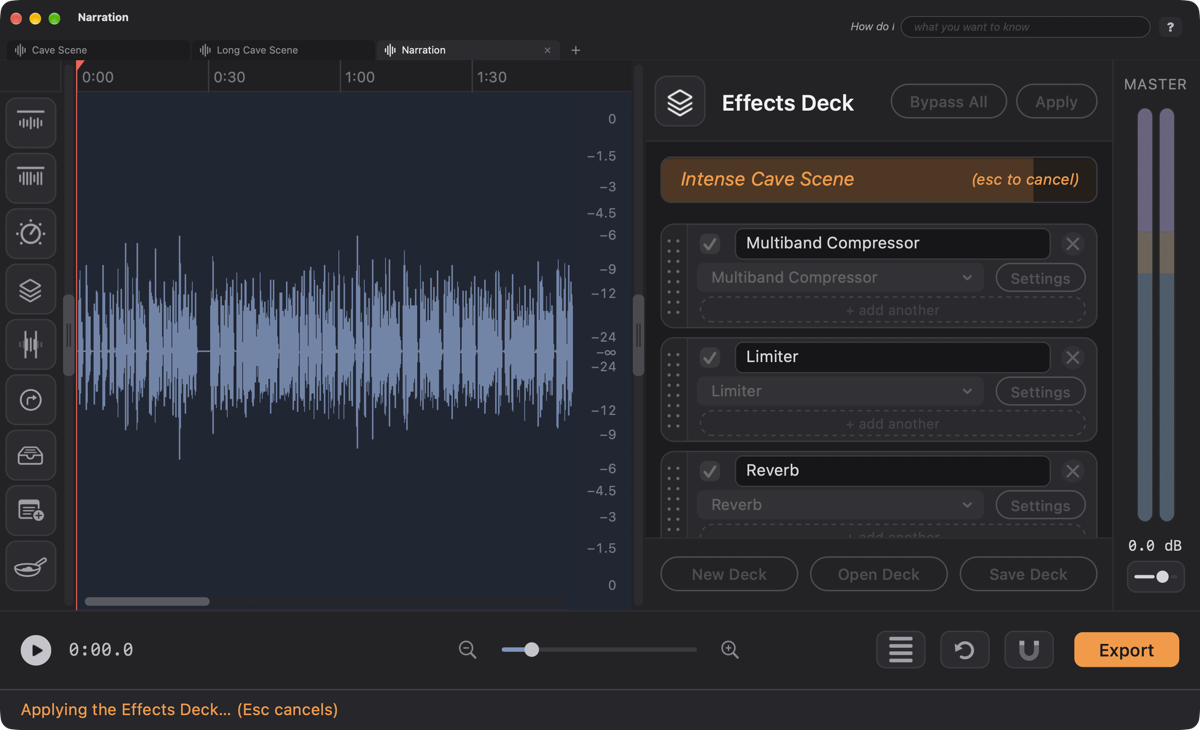
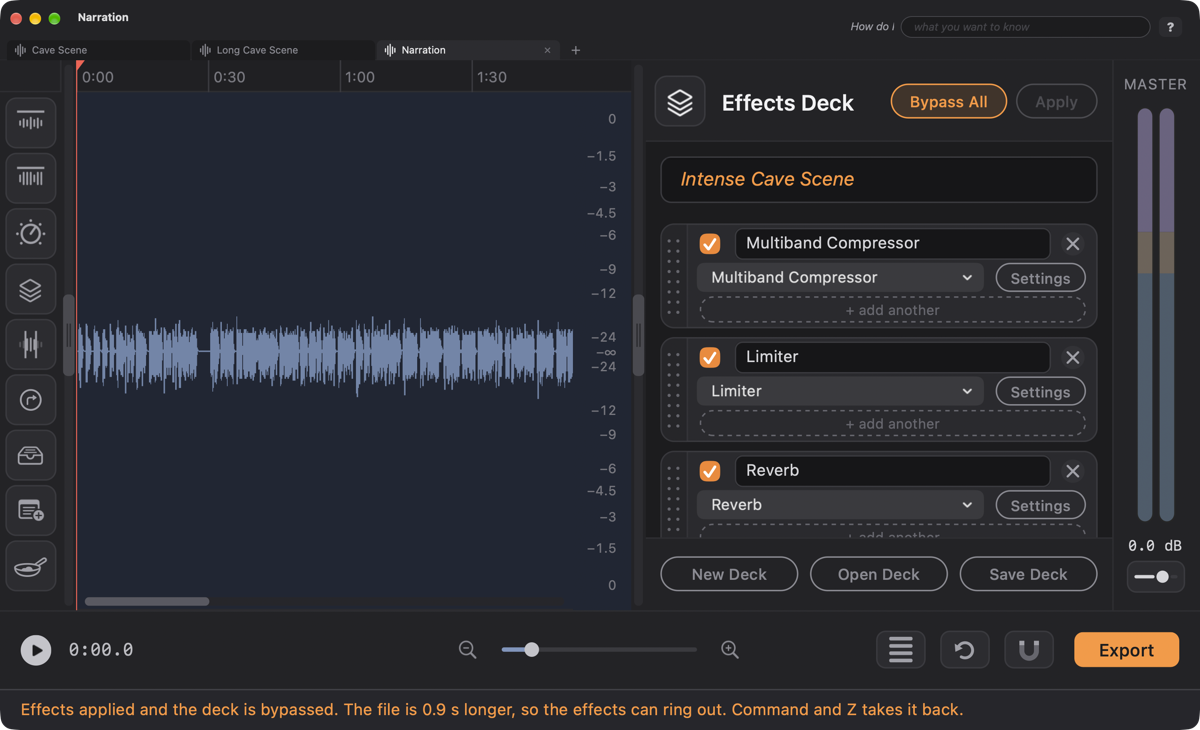
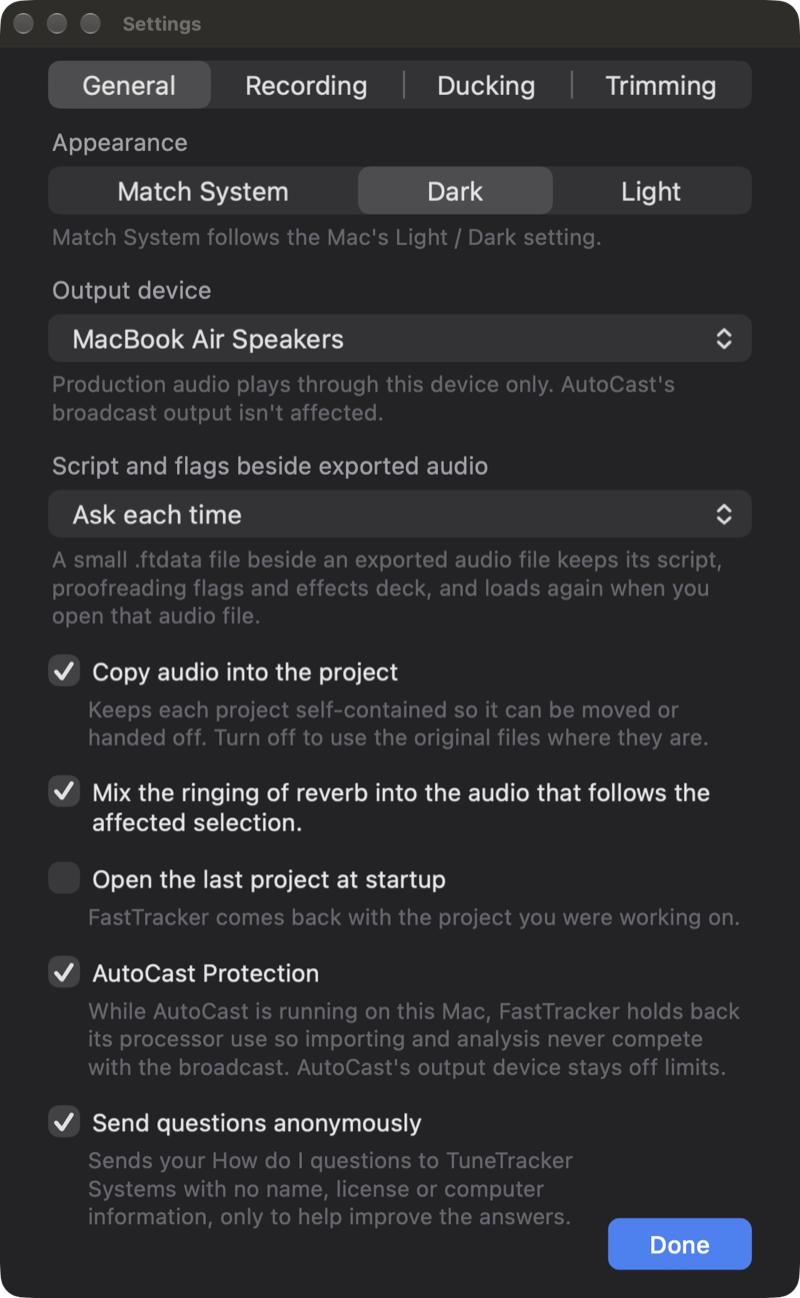
When you Apply a reverb or echo to a selection, its ring runs past the end of the selection. Settings ▸ General ▸ “Mix the ringing of reverb into the audio that follows the affected selection” decides what happens to it. It sits just below Copy audio into the project. Checked (the starting choice), the ring is mixed over the audio that follows, and nothing moves. Unchecked, the ring is inserted after the selection, so the audio after it, and any markers, notes, flags and take circles, move later by the length of the ring. Rest the pointer on the box and the status bar explains both choices.
.deck file, kept in one folder that every TuneTracker product with an Effects Deck shares, so a deck saved in one mode shows up in the other, and your old filter chains (.ftchain files) are here as decks: FastTracker copied them over the first time it started..ftdata file. When you open the file again, the deck comes back switched off (Bypass All is lit), so effects you already applied don’t double up.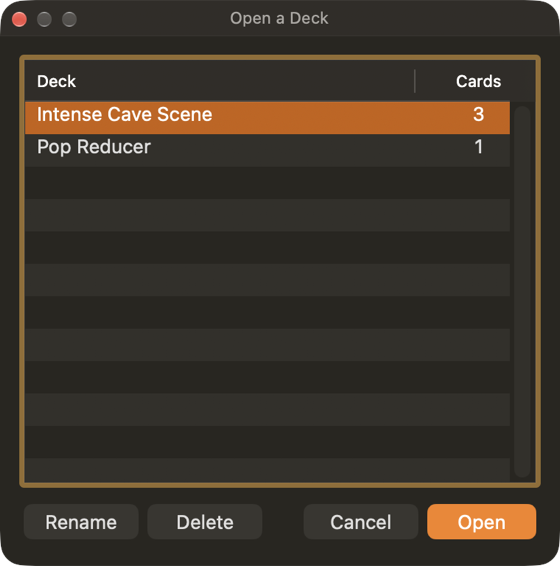
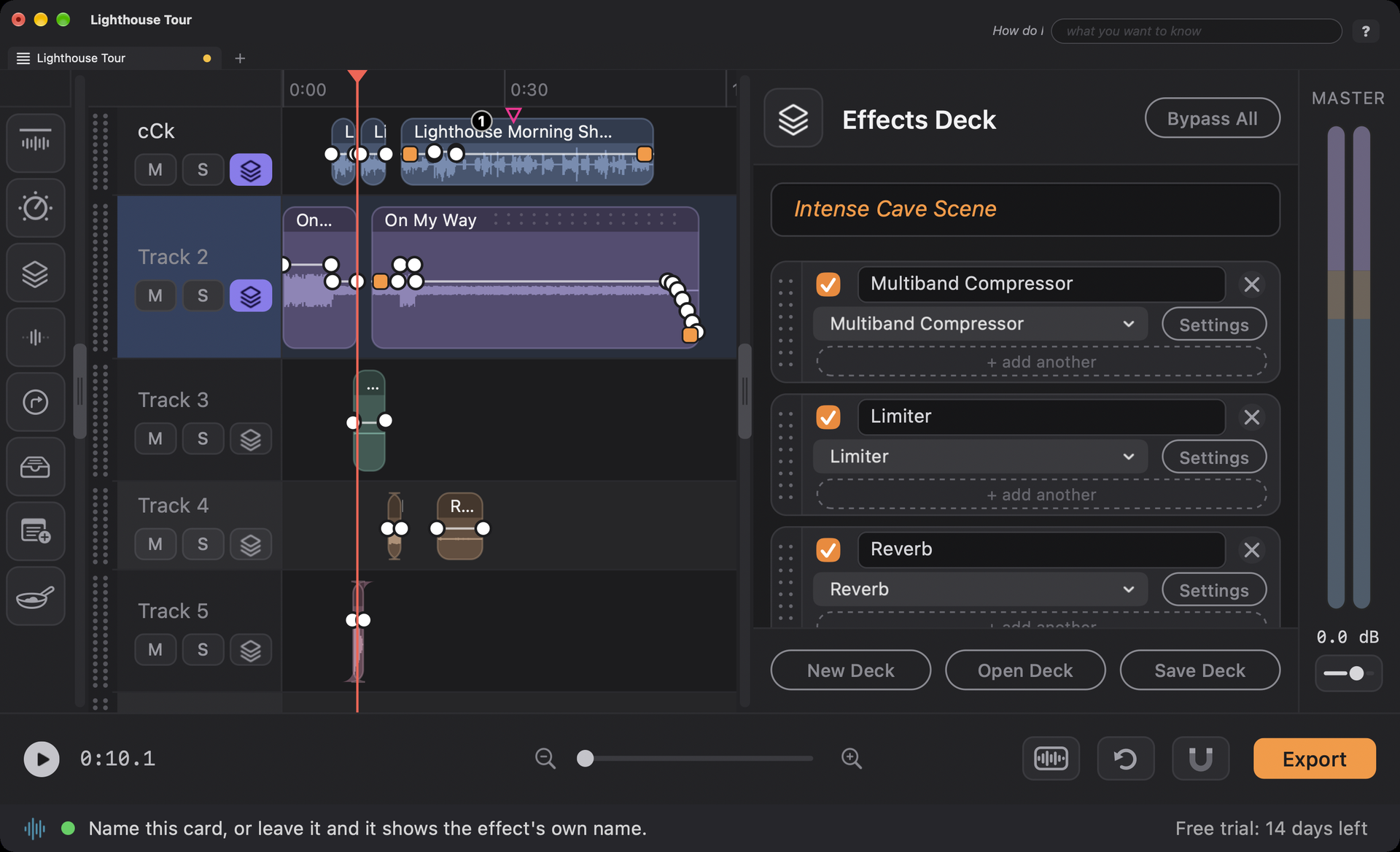
The drawer shows the effects of the selected track and changes when you select another track. There is no Apply button: effects are heard live, and they are put into the sound when you Export, as before. Closing the drawer, or selecting another track, closes any open effect windows. The effects your existing projects already had appear as cards.
Each track keeps its own deck, and the deck’s name goes with it: type a name in the drawer and that track remembers it, and it is saved with the project.
The Mode Button takes the deck along with the audio, name and all, in both directions. Going from Single Track Mode to Multitrack Mode, the deck becomes the new track’s deck. Going back from Multitrack Mode with one track, nothing is asked: the raw audio comes over and that track’s effects become the deck, still on the cards where you can change them. Only a mixdown of several tracks, or a track with more than 12 effects, asks whether to bring over the audio with the effects applied or the raw audio.
When the free trial has ended, Apply and Save Deck are refused with the usual note in the status bar; everything else still plays.