
Need a track you don’t already have? You can quickly record one right in FastTracker. Choose a track, tap R, say your piece, and tap R again. The take lands on the track, lined up with the music you heard while you talked, and with its level already sorted out. No other program, no exporting, no importing.
Two minutes of setup, once.
Wear headphones. FastTracker plays your other tracks while you record, and a speaker playing the music into an open microphone makes for a take that’s a bit too… cozy.
You can see it working: the clip grows from the playhead and draws the sound as it arrives, the track’s dot meter lights with your voice, the playhead keeps going with you even after the last clip has finished, and the timeline makes room. A moment after you stop, the take becomes a normal clip named Recording 1, Recording 2, and so on, already selected and ready to move, split, copy, or polish with effects. FastTracker allows for the delay in your input and output devices, so it lines up with what you heard while you were speaking.
Recording on an empty track, or into a brand-new project? That works too. With nothing to play along with, FastTracker simply records.
Recording a line into the middle of a track never tramples what’s already there, because R makes room: as you record, everything to the right of the recording point on that track is pushed along to the right, a little further every moment, so your new take always has room. (If you would rather record over what is there, with nothing pushed along, press ⇧R (Shift-R) instead.) The clips keep their spacing, and when you stop, they sit just after the new clip.
Ripple Record is perfect for fixing a phrase: put the playhead where the bad line begins, press R, say it right, and stop. Then split and delete the bad line. Everything after it has already made room.
Voice-over people have a trick for matching their voice to what came before: they listen to it first, then carry straight on. V does that for you. Choose the track, click on the line you want to lead in from (anywhere inside the clip, or even a few seconds before it), and tap V:
If the playhead is in a gap, the roll goes up to the end of the next clip on the track. If there is no clip ahead at all, there is nothing to roll over, so V behaves like ⇧R from the playhead. One ⌘Z undoes the take and the push together.
Want to stop and keep what you have? Tap Space, or ⇧Space, which stops the recording right where it is and keeps the take.
Fluffed it? Tap Esc while R, ⇧R or V is running, in the roll or in the take. The recording is thrown away, any clips that were being pushed slide back where they were, and the playhead returns to where it was when you started, ready for another go. It leaves nothing on the undo list, because as far as your project is concerned, it never happened. (Once a take has ended and is becoming a clip, Esc is too late: use ⌘Z.)
While a recording is running (or being finished), the project is locked against editing: no moving, trimming, cutting, pasting, splitting, grouping, deleting, adding effects, reordering tracks, or ⌘Z. A take is placed against the project as it was when you started, so changing things underneath it could make the new clip land on top of another, and Esc couldn’t put everything back. Anything that’s refused beeps and says so in the status bar. You can still scrub, click clips to select them, mute, solo and use the faders as much as you like. Everything is editable again the moment the take has become a clip.
A voice recorded gently often sits well below the music, and the volume line only goes up to +6 dB. So when a take ends, FastTracker measures it and sets the clip’s clip gain, a lift on top of the volume line, so you still have the whole line free for fades and ducks. Your recording itself is never changed: the raw take is always kept exactly as it was recorded, and one ⌘Z removes the clip altogether.
When you read from a script, it is awfully easy to say “the” where the page says “this” and never notice. Follow-Along notices for you. While you record, FastTracker listens, keeps track of where you are in your script, and marks every word you said differently. Afterward you hop from mark to mark, fix each one, and you’re done. No second pair of ears required.
The listening is done by Apple’s own speech recognition, which runs on your Mac. It needs macOS 26 or later.
Open FastTracker ▸ Settings…, click the Recording tab, and tick Follow-Along in the strip at the bottom, left of the Done button. The first time, FastTracker may need to fetch Apple’s speech files, so be online; the status bar tells you when it is ready. (On a Mac older than macOS 26 the box is greyed out and says Requires macOS 26 or higher.) The How it works link beside it brings you back to this page.
Three kinds of marks show up:
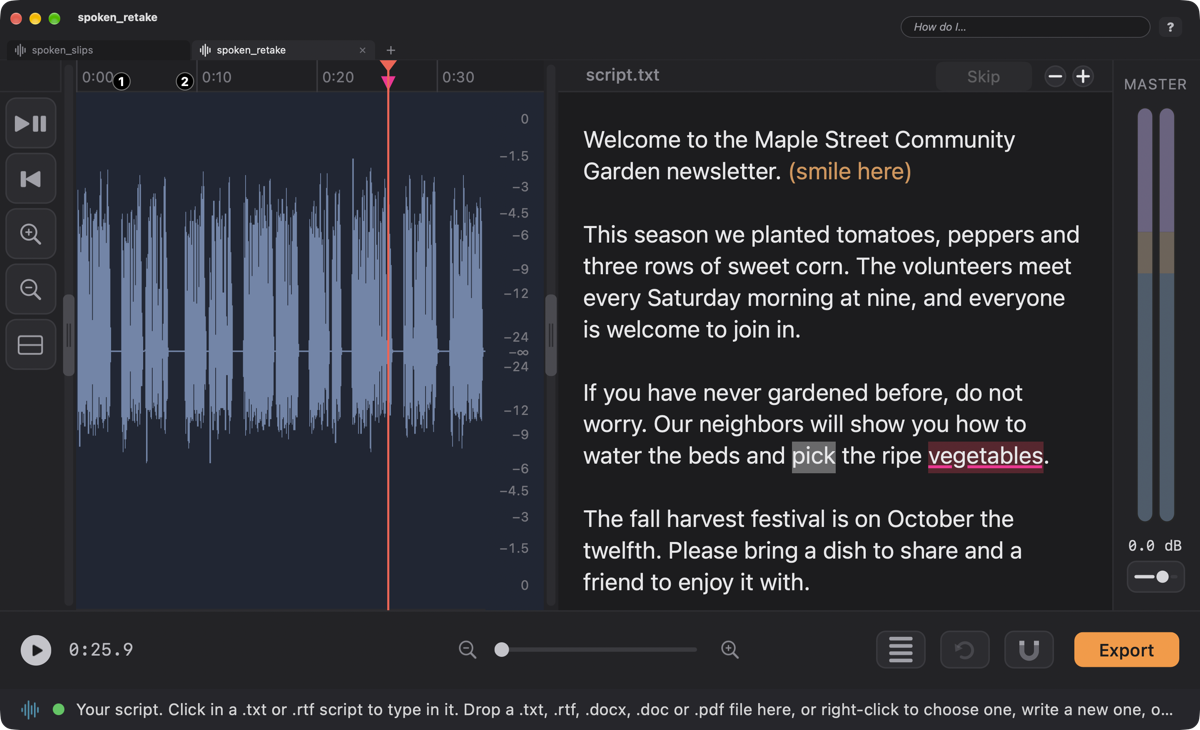
Follow-Along is easy on you and strict about flags. Numbers (“2” for “two,” “90” for “ninety”), money, percents and ordinals, contractions, names, a word with a different ending (“rush” and “rushed”), words that sound alike, and hyphenated words (“long-term,” “9-point”) are all let through. A scripted “um” or “uh” that the recognizer leaves out is ignored. If the recognizer is not at least 80 percent sure of a word, you are not shown a flag for it: FastTracker would rather miss a flag than cry wolf. A sentence you read again is recognized as a retake and gets numbered circles, so the line before it isn’t blamed, and even a retake that the recognizer garbled, or three takes of a short line, are numbered 1, 2, 3. Real slips (swapped or skipped words) are still flagged, and little words get their own kind of flag, described next.
When a little word (“the,” “a,” “in,” “and,” “to,” “of” and the like) is swapped for another (“in” for “and”), or you add a word of your own, FastTracker doesn’t cry “wrong.” It gives you a hollow pink triangle (just an outline) in the strip under the ruler and a pink underline in the script: a “check this” flag that means listen and decide. Those are the only flags a little word ever gets. When you save audio that has flags, the warning counts them, for example “This recording has 14 proofreading flags (3 of them ‘check this’ flags).”
A script often has words that are not for reading aloud: a title, a producer’s note, “(pause here).” Drag across them in the script pane and click Skip in the pane’s header. They turn amber and are never flagged. Select amber words and the same button says Don’t Skip, which puts them back. A note that is not in brackets, such as a b-roll line or a heading, must be marked with Skip like this, or it shows up as words you never read.
You often won’t have to do any of this yourself. Anything in ( ) parentheses or [ ] brackets is marked amber, and skipped, automatically: when a script is loaded (a notice strip tells you it happened), and as you type or paste, the moment you close the bracket. That is how producers write notes that are not narration. If a passage in brackets is something you do read aloud, select it and click Don’t Skip, and it stays unmarked.
Your skips are saved with the project and stay with it when you move between modes.
Recorded without Follow-Along, or edited the recording since? Choose Script ▸ Sync Recording to Script. FastTracker takes the track exactly as it sounds now, listens to it much faster than real time, and lays the script’s words and the flags against it. (It needs Follow-Along turned on in Settings and a script that isn’t a PDF.) When it’s done, the status bar says how many words it placed and how many flags it found.
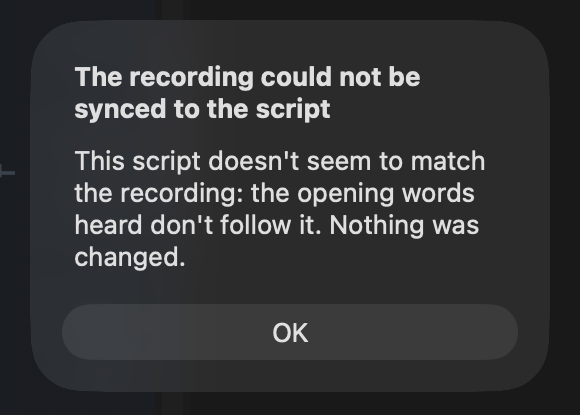
It will not guess, though. If the script is not the one you read, FastTracker says “This script doesn’t seem to match the recording: the opening words heard don’t follow it. Nothing was changed.” It checks the first three sentences it hears, so a slate (“Take two, chapter four”) or an ad-lib at the top won’t condemn a good script.
In FastTracker 1.10.56 this command was called Re-sync. Same command, better name. Projects whose recordings were synced in an earlier version should be synced again with this command, to get the newer, quieter flags.

Everything lives on the Recording tab in FastTracker ▸ Settings….
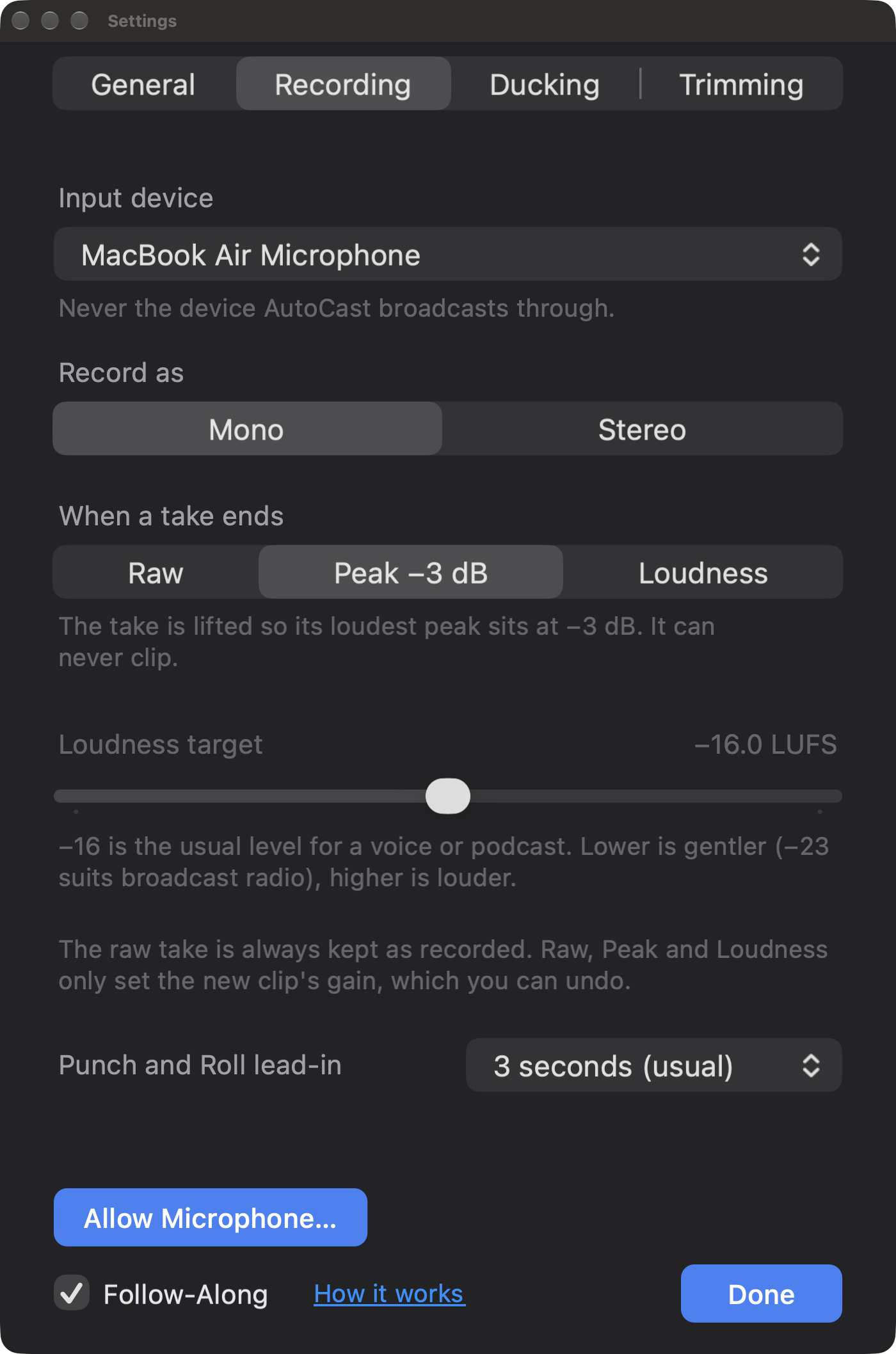
| Setting | What it does |
|---|---|
| Input device | Where the sound comes from. The device AutoCast is broadcasting through is shown greyed out and can’t be chosen. If your list is empty, check that your microphone or interface is connected. |
| Input | Only appears for an audio interface with more than two inputs: pick the input your microphone is plugged into. |
| Record as | Mono (the default) is right for a voice and makes smaller files. A stereo input is blended to one channel. Choose Stereo to keep both. |
| When a take ends | Raw: what you record is what you get. The take goes in exactly as recorded, with no change to its level at all. Peak −3 dB (the default): the whole take is lifted by one fixed amount so its loudest peak lands at −3 dB, the usual level for voice-over. It can never clip, and it’s what most editors call “Normalize.” Loudness: the take is lifted to how loud it sounds on average (the target below), a different thing from how high its peaks reach. |
| Loudness target | Used by the Loudness choice. The slider is centered on −16 LUFS, the usual level for a voice or podcast. Slide down (−23 suits broadcast radio) for gentler, or up for louder. The lift never goes so far that the loudest peak passes −3 dB, and the status bar tells you when it stopped short. |
| Punch and Roll lead-in | How long before the punch point V starts playing, so you hear the lead-in. Choose from the menu; 3 seconds is the usual. |
| Follow-Along | A checkbox in the strip at the bottom of the tab, left of Done. Turns on the proofreading described above. Needs macOS 26 or later. |
| Microphone access | If FastTracker isn’t allowed to use the microphone yet, this tab has a button to ask, or to open Privacy settings. |
The settings apply to the take you’re about to make. A clip you’ve already recorded keeps the gain it was given. Want to start over on a take? ⌘Z removes it, and the raw recording stays in FastTracker’s Recordings folder in case you ever want it.