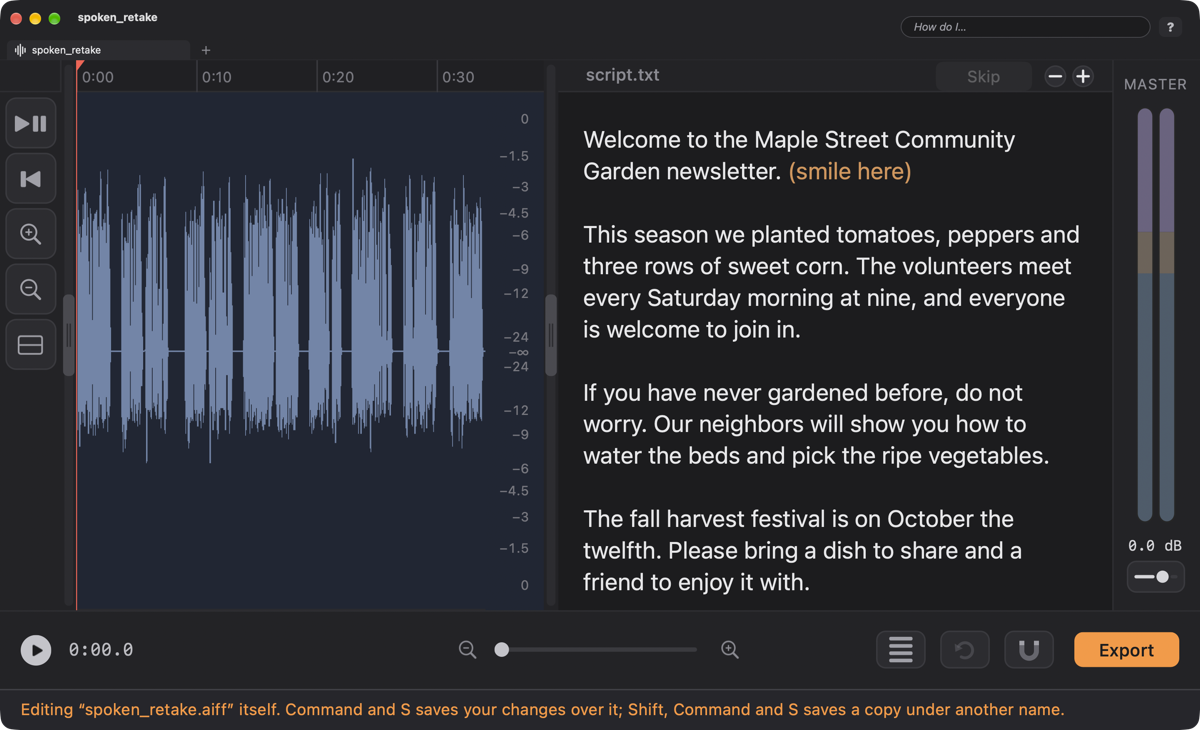
Reading a script while you record? Slide it out beside your waveform. The script viewer shows a text, Word or PDF file right inside FastTracker, saved with your project, so the words you’re reading are always on the screen next to the voice you’re recording. You can type in it, too, and with Follow-Along it becomes a proofreader.
The script viewer works in both Multitrack Mode and the Single Track Mode window. At the right edge of the track area you’ll see a thin gray bar with a small handle on it, just left of the master meters. The bar is always shown, so the viewer is never far away. It opens the drawer, which holds one helper at a time: the script, the Cookbook, ClipView or the Keyboard Guide.
The waveform window is always everything not covered by the viewer, so what you record never slides underneath your script. Zoomed in, the playhead stays in the middle of the narrower waveform window while you open, close or resize the viewer. When the viewer is closed it takes no room.
Drop a file on the viewer (or on its bar, which opens it), or right-click the viewer and choose Open Script… (also Script ▸ Open Script…). FastTracker shows these kinds of files:
| File | How it appears |
|---|---|
| Text (.txt) | Wrapped to the width of the viewer, at a comfortable reading size. |
| Rich Text (.rtf) | Wrapped to the viewer, keeping simple formatting. |
| Word (.docx and .doc) | FastTracker asks how to open it: Simplified (recommended: just the words, easy to read and to edit) or As It Is. As it is, the text is wrapped to the viewer, and bold, italic, colors, highlights, lists and simple tables come through. Complicated page layouts (text boxes, columns) may come out plainer. |
| PDF (.pdf) | FastTracker asks how to open it: Simplified or As It Is. As it is, it keeps its pages, fitted to the width of the viewer. In the dark look the pages are re-tinted so white paper does not glare; colored text and highlights keep their colors. |
Pages files can’t be shown. In Pages, choose File, Export To, PDF (or Word), then drop that file in instead. Drop a second script and it replaces the first. Dropping several files at once uses only the first.
Most scripts arrive as a Word file or a PDF laid out for a printed page: narrow columns, a line break at the end of every line, page numbers, big margins. That is fine on paper and awkward on a script reader, where you want the words to fill the width of the viewer, grow when you make them bigger and run on smoothly.
So when you add a Word or PDF script that has words in it, FastTracker asks How should “your file” open?, with three buttons:
The simplified copy is a Rich Text script named after your file (“Spoken Script.pdf” becomes “Spoken Script.rtf”). Because it is Rich Text you can type in it, fix a line, bold a word you tend to trip over, and use Follow-Along with it, which a PDF shown as it is cannot do. Your original file is never changed. The project keeps the simplified copy as its script, so there is no original to compare with: the original has changed strip (see below) and Show Original in Finder do not apply to it. A PDF that is only a picture of pages (a scan) has no words to simplify, so it simply opens as it is.
Reading from a script? Choose Simplified. If a simplified copy isn’t what you wanted, add the file again and choose As It Is; and since the copy is editable, any fix-up is just typing.
A big or slow file never freezes FastTracker: the viewer says Opening… (or Downloading… for a file that is still coming down from Dropbox or iCloud) while it reads it. Until the new script is fully read, the one you had stays put.
Row spacing. While the script is showing, tap 1 for the script’s own row spacing, 2 for double spaced or 3 for triple spaced, whichever is easiest on your eyes while you read. It changes only how the script looks on your screen: FastTracker remembers your choice, and a script you save keeps its own spacing. It does not apply to a PDF shown as it is.
Press ⌘F (or choose Edit ▸ Find in Script) and a search box appears on its own row at the top of the script. Type, and the matches light up in the text. It is never wider than the drawer. Click the x, click Done or press Esc and the bar closes and every highlight goes with it.
No script yet? Choose Script ▸ New Script and start typing; it begins as a Rich Text script. Click into a script and you can edit it right where it sits:
| File | What you can do |
|---|---|
| Text (.txt) | Type and edit as plain text. |
| Rich Text (.rtf), and any script made with New Script | Type and edit, plus ⌘B bold, ⌘I italics, ⌘U underline and ⇧⌘H highlight. Handy for marking a word you tend to trip over. |
| Word (.docx, .doc) and PDF opened Simplified | Type and edit like any Rich Text script, as the row above. |
| Word (.docx, .doc) and PDF opened As It Is | Read-only, but you can select and copy the text out. |
Your edits are saved to the project’s copy a moment after you stop typing, and your original file is left alone. Script ▸ Save Script As… writes a file of your own. If you want a Word script edited and you chose As It Is, edit it in Word and use Update (below); a Simplified script you can simply edit here.
If the script has Follow-Along marks on it, changing the words would leave the flags pointing at the wrong places. FastTracker says so first (Changing the script erases its Follow-Along data and proofreading flags for this project) and lets you Cancel.
When you record with Follow-Along, the script pane is where the marks show: pink words for proofreading flags and a gray highlight on the word at the playhead. The Skip button in the pane’s header (it appears when you have selected some words) turns words you won’t read, like a title or a note, amber so they are never flagged; on amber words it says Don’t Skip. Anything in ( ) or [ ] is turned amber for you automatically, when a script is loaded and as you type or paste it (the moment you close the bracket). Skip is in the right-click menu, too. The whole story is in Follow-Along.
When the recording has Follow-Along marks, a single click on a word moves the playhead to that word and hands the keyboard back to the waveform, so Space plays from it. Double-click when you want to type in the script instead; FastTracker asks first, because changing the words erases the marks. A click on a pink word, a pink flag in the strip under the ruler or a numbered take circle puts the playhead half a second before that point, so you hear the lead-in to the slip. The gray mark under the word being said is a little stronger in the dark look.
When you add a script, FastTracker keeps a copy of it inside your project. Your original file is never moved or changed. Adding, replacing or removing a script counts as a change to the project, so FastTracker asks to save it before you quit, just as it does for any other change. Save and the script travels with the project: close FastTracker, open the project again, and the script, its text size, the width of the viewer, the skipped words and any proofreading flags come back. Save As… to a FastTracker project takes the script along too. Moving between Multitrack Mode and Single Track Mode carries it with you.
A big PDF adds its full size to the project: a 38 MB script makes the project 38 MB bigger.
Suppose you fix a line in Word and save. After a moment a strip appears across the top of the viewer: The original script has changed. Choose:
Nothing ever swaps under your eyes without asking. If you delete or move the original, the project’s copy keeps working.
Right-click the viewer and choose Close Script. FastTracker asks first, and removes only the project’s copy, never your original. (If the original can’t be found any more, the question says the project’s copy is the only one left.) Show Original in Finder in the same menu takes you to the original file.