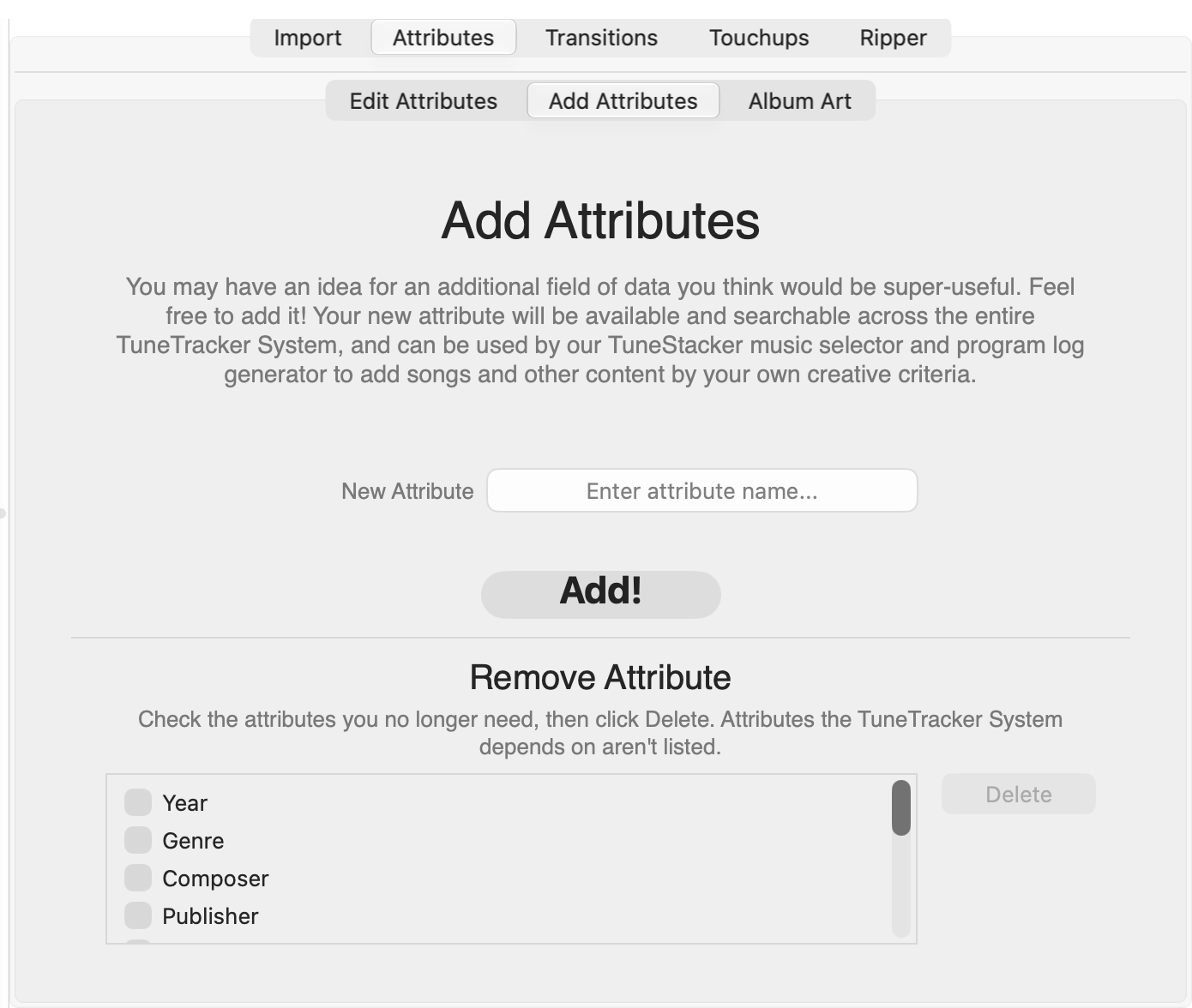
Your library comes with a solid set of standard fields out of the box, but every station is a little different. The Add Attributes sub-tab lets you add your own custom columns to the library — fields that are meaningful to your operation and don't have a standard home anywhere else.
Custom fields show up everywhere standard fields do: in the attribute editor, in the filter dropdowns, and in the library TSV file itself. Once added, they're first-class citizens alongside Artist, Title, and the rest.
The same sub-tab is where you remove an attribute you no longer need.
Type a name for your new field in the New Attribute field and click Add!. Librarian validates the name and, if it passes, adds an empty column for it to every row in your library.
A few rules for field names:
Choose field names that are short but descriptive — you'll see them in dropdown menus throughout the app. Something like BPM, Energy, Tempo, or Daypart works well. That field where we put the thing about the song does not.
Some fields that stations commonly add:
| Field name | What stations use it for |
|---|---|
| BPM | Beats per minute — for music-intensive formats that want tempo-aware scheduling. |
| Energy | A subjective 1–10 energy rating, used to control the flow and feel of an hour. |
| Tempo | A descriptive tempo label — Slow, Medium, Uptempo — for schedulers that use text-based matching. |
| Language | Useful for multilingual or bilingual formats. |
| Explicit | Flag for stations that need to track clean vs. explicit content. |
| Daypart | Which dayparts a song is appropriate for — some stations restrict certain tracks to evenings or overnight. |
| Mood | Upbeat, Melancholy, Romantic, etc. — for formats where mood consistency matters. |
Your new field appears at once in the Attribute Editor on the Edit Attributes sub-tab, just above Cover Art. There's nothing to switch on first.
New fields start empty for every song in your library. You'll need to fill them in using the Edit Attributes sub-tab — either one song at a time, or in batches using multi-select. The filter system in the middle pane can help you find songs that still have an empty value in your new field: set the filter to your new field name and type unset.
Custom fields are also immediately available as filter criteria in the middle pane's field dropdowns, so you can start using them for filtering even before every song has been filled in.
The lower half of the Add Attributes sub-tab is Remove Attribute. Use it to get rid of a field you added by mistake, or one your station no longer needs.
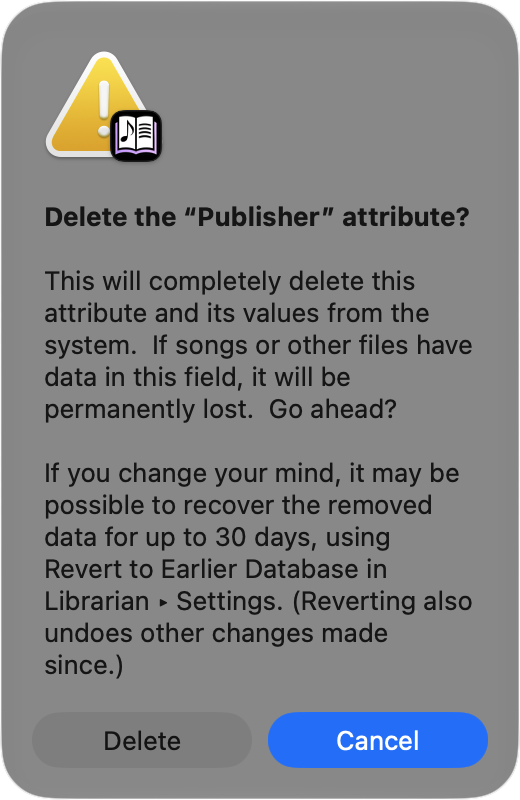
Removing an attribute is permanent. It deletes the attribute and every song's value for it from your library. If songs have data in that field, the data is lost, and there's no Undo for it, though it can often be recovered for up to 30 days. Read Before You Remove first.
The attribute disappears from the Attribute Editor, the filter dropdowns and the library file, in Librarian and in the other TuneTracker apps.
Only attributes that are safe to remove are listed. The ones the TuneTracker System depends on are left off the list, so they can't be deleted by accident:
set. If you might want the information later, copy it somewhere first.If you change your mind, it may be possible to recover the removed attribute and its values for up to 30 days, using Revert to Earlier Database in Librarian › Settings…. Librarian always saves a version of your library just before it removes an attribute, so there is one from right before the removal.
Reverting steps the whole library back to that version, so it also undoes anything else you changed in the library afterward. The sooner you notice, the less there is to redo.
(Librarian also saves a copy named library_before_remove_attribute.tsv in your Station's Logs/Database folder each time you remove an attribute. It holds the library as it was before the most recent removal.)