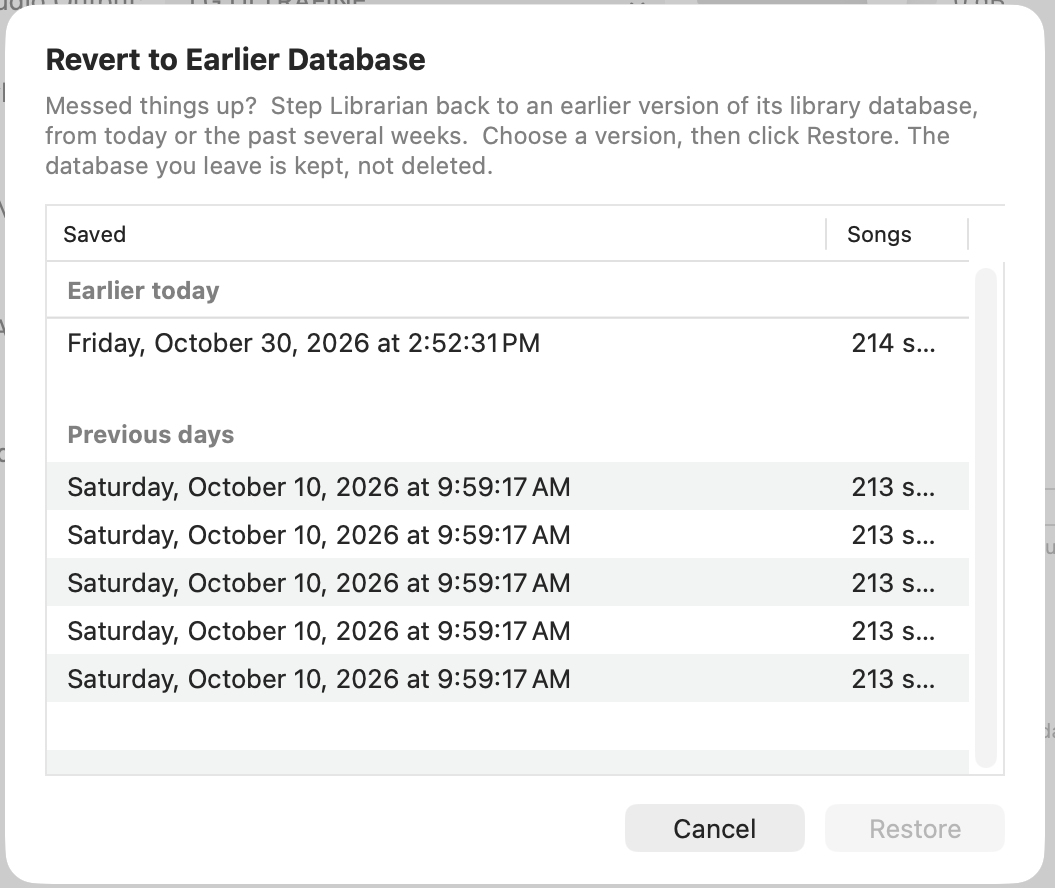
Messed things up? Librarian keeps earlier versions of your library database as you work, and Revert to Earlier Database lets you step back to one of them: from a few minutes ago, from this morning, or from days or weeks back.
This needs Librarian 1.1.164 or later.
Reverting does not bring back audio files. The library database is the list of your songs and everything Librarian knows about them: artist, title, transition marks, attributes and so on. The audio files themselves are separate. If you removed songs with Delete, their audio files went to the Trash, and reverting the database will not put them back. See If You Deleted Songs below.
Librarian saves two kinds of earlier versions, automatically. You don't have to do anything.
| Kind | What it's for | How many |
|---|---|---|
| Recent versions | "Oops, just now." As you work, Librarian saves a version each time the library has moved on at least 10 minutes since the last one. Before a risky change (deleting songs, removing an attribute, replacing a damaged file) it always saves one first, whatever the timing. | The latest 5 |
| Daily versions | "Something I did days ago." The first time Librarian sees your library each day, it saves the library as it stood then, before that day's changes. Days when nothing changed are skipped. | The latest 30 |
So after a busy day's work you can still go back to how things stood this morning, or three mornings ago. Thirty daily versions cover at least a month, and longer if there were days you didn't change the library.
These versions are small. They hold the song list and its details, not the audio.
Librarian loads that version and refreshes the song list. The other TuneTracker apps pick up the change too.
Not sure which version you need? The saved time and the song count are the clues. Pick the newest one from before the mistake. If it turns out to be the wrong one, you can revert again: the list of versions isn't used up by reverting.
Reverting never throws your current database away. Just before it loads the earlier version, Librarian saves the one you're leaving in your Station's Logs/Database folder, named for the moment you reverted, like this:
Abandoned library (2026-10-13 11-46-52).tsv
These are kept permanently; Librarian never deletes them. If you revert and then wish you hadn't, that file is your way back. Contact TuneTracker support if you need a hand putting one back.
Reverting replaces the whole library with the earlier version, so everything that changed in the library after that version was saved is undone, not just the one mistake. That includes:
Songs you imported since then aren't lost. Their audio files are still in your Station folder, and Librarian adds them to the library again when it reloads; details you had entered for them since then will need entering again.
Reverting restores the song's entry in the library, not its audio file. When you delete a song in Librarian, the audio file is moved to the Trash. An earlier version of the database still lists that song, but the file is no longer in your Station folder, so Librarian drops the entry again when it loads the library.
To get a deleted song back:
The order matters: put the audio file back first, then revert.
library.tsv, the daily ones in a Library History folder.