Most stations get around to backups eventually. Fewer stations think hard about what "backup" actually means. It sounds like a simple word, but there's a world of difference between a tool that mirrors your station folder and one that actually protects you — and the difference comes down to a single question: what happens to the backup copy of a file after you delete the original?
Get that answer wrong, and your "backup" can fail you at the exact moment you need it.
The Mirror Trap
A lot of simple sync tools, and even some backup software, work by mirroring: whatever's in the source folder gets copied to the destination, and whatever's not in the source folder gets removed from the destination too, to keep the two in lockstep. That sounds tidy. It's also a trap.
Say a song gets accidentally deleted from your station folder — a slip of the finger, a script gone wrong, an intern cleaning up what looked like clutter. If your backup mirrors the station folder, the next sync quietly removes that same song from the backup. Now it's gone everywhere, and you may not even notice until someone asks why a familiar track hasn't played in weeks.
A real backup has to behave differently. It needs to keep a copy of a file even after that file is deleted from the live station, at least for some sensible amount of time. Files sitting in the backup with no matching file back in the station folder are called orphan files — and having them stick around, rather than vanish the moment the original does, is what turns a backup from a mirror into an actual safety net.
The whole point of a backup is that it disagrees with your station folder sometimes. If it never does, it isn't protecting you from anything.
Why Differential Backups Matter Here
This is where the type of backup your system runs really matters. A differential backup doesn't blindly re-copy everything, and it doesn't mirror deletions either. It compares each file in your station folder against what's already in the backup and copies over what's new or changed — it doesn't go the other direction and start removing backup files just because the matching original is gone. That asymmetry is exactly what you want. New and changed files flow into the backup quickly and efficiently. Deleted files stay put as orphans, quietly waiting in case you need them back.
Combine that with a backup tool that also watches your station folder continuously, catching changes as they happen rather than waiting for the next scheduled run, and you get a system that's both current and forgiving of mistakes.
So Why Not Just Keep Everything Forever?
Here's the catch, and it's the reason this whole subject deserves an article of its own: if your backup never deletes anything, ever, those orphan files accumulate. Retired jingles. Old promos that got replaced. A batch of test recordings someone forgot to clean up. None of that hurts anything day to day, but on a station with years of history, it adds up, and eventually it's eating real space on your backup drive.
So a good backup system has to solve two problems that pull in opposite directions: keep deleted files around long enough to be useful as a safety net, but give you a way to clear out the ones you're sure you don't need, so the backup doesn't grow forever. That balance is what we mean by orphan care.
The Rule of Thumb
Handled carelessly, orphan cleanup can undo everything a good backup is supposed to protect against. Delete the wrong thing at the wrong moment, and you've thrown away the one copy of a file you'll wish you had back. So a little discipline goes a long way:
- Don't delete an orphan file just because it's sitting there. Its presence isn't a problem by itself. Disk space is cheap; a file you actually needed is not replaceable.
- Delete when you're certain, not when you're curious. If you recognize a file as genuinely retired content — a jingle you know you replaced, a promo you know you pulled — that's a safe candidate. If you're not sure why it's an orphan, leave it.
- Give recent orphans time. A file that vanished from your station folder last week might have disappeared by accident and nobody's noticed yet. A file that's been an orphan for six months almost certainly isn't coming back.
- Sort by age before you sort by size. The oldest orphans are the safest to clear out. Chasing the biggest files first, without checking how old they are, is how a good backup habit turns into a bad day.
How TuneVault Handles Orphan Care
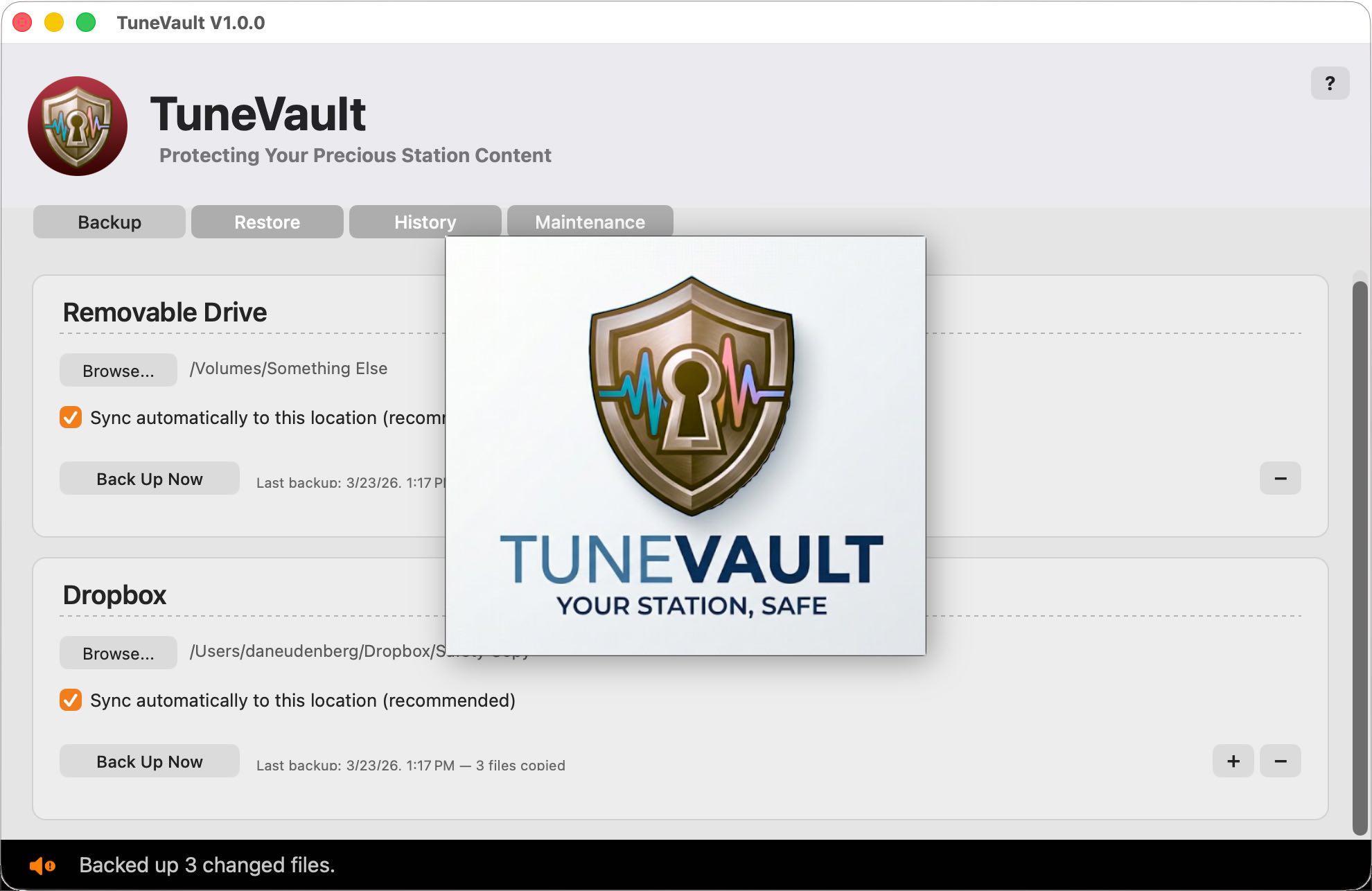
This is exactly the balance we built into TuneVault, our backup add-on for the TuneTracker System. TuneVault never deletes anything from your backup automatically — not on a schedule, not as part of a sync, not ever. If a file disappears from your live station, the backup copy stays exactly where it is, for as long as it takes you to notice, ready to bring back if the deletion turns out to be a mistake. Orphan cleanup only ever happens when you decide it should, from the Maintenance tab.
What the Maintenance Tab Gives You
A full scan, on demand. TuneVault compares your chosen backup destination against your live station folder and lists every file that exists in the backup but not in the station — along with a running total, like "23 orphan files, 1.4 GB total," so you know at a glance how much is there.
Sortable by what actually matters. Click to sort by Path, Filename, Size, or Modified date. Sorting oldest-first surfaces the safest candidates for removal; sorting largest-first shows you where the space is actually going.
Selective, not all-or-nothing. Check the files you actually want gone, use "All" to select or deselect everything at once, and leave the rest untouched. Nothing is removed until you click Delete Selected, and TuneVault confirms exactly how many files and how much space before it does anything.
Because TuneVault treats each backup destination independently, if you're running more than one (it supports up to three), orphan files are tracked and cleaned separately for each. Maintenance on your local drive doesn't touch what's sitting on your NAS or cloud-synced destination.
A Sensible Rhythm
You don't need a strict schedule for this — just a habit. Check the Maintenance tab once a month, or whenever your backup drive starts feeling full. Sort oldest-first and clear out what you clearly recognize as retired. If you need space in a hurry, sort largest-first instead, since a handful of old audio files can free up gigabytes fast. And when a file makes you pause and think "wait, what was that?" — leave it. That hesitation is the system working exactly as intended.
A backup that keeps every deleted file forever isn't really protecting you any better than one that manages its orphans thoughtfully. It's just protecting you more expensively. The goal was never "keep everything." It was always "don't lose anything you actually needed" — and that's a decision that deserves a person behind it, not an automatic timer.
Backups that remember what you deleted, until you say otherwise.
TuneVault watches your station continuously, runs differential backups on schedule, and gives you full control over orphan cleanup whenever you're ready for it. $199, with a 15-day free trial.
Learn About TuneVault