TuneTracker News
Librarian Now Catches Damaged Audio Files Before They Reach the Air
A bad file used to announce itself on the air, as silence. Librarian's new Baddie Detector finds it first, while you may still have the original.
A bad file used to announce itself on the air, as silence. Librarian's new Baddie Detector finds it first, while you may still have the original.
Every radio person knows the sound of a file going wrong on the air: a song starts, and then nothing. Or it starts, stutters, and stops halfway through. Or the automation reaches it, can't play it, and moves on, leaving a hole in the hour. The listener hears dead air, and the station sounds like nobody is home.
Files rarely arrive that way on purpose. A download gets interrupted. A copy to a new drive doesn't quite finish. An old disk starts to fail. A rip stops short, or a file gets damaged in transfer. Often the file looks perfectly fine in the library. It has a name, a length, and a place in the rotation. The trouble only shows when someone tries to play the whole thing, and by then the song is on its way to air.
That's why we added a new tool to Librarian: the Baddie Detector.
It catches two kinds of trouble: files that can't be opened at all, and the sneakier kind, files that open normally but can't be played all the way through. The second kind is the dangerous one. The song appears to load, and nothing seems wrong until it hits the bad spot partway through.
You decide when to look, and Librarian also keeps an eye out as you work:
Librarian does not read your whole library every time it starts. A full check reads every audio file from end to end, so it's something you run on purpose.
A damaged song is marked right in the song list with red text and a ⚠ warning symbol, so it stands out at a glance. In the Baddie Detector, every damaged song in your library is listed in one place, grouped by folder, with the reason it was flagged. In your library file, library.tsv, the song's Health field reads “Damaged.” A blank Health field means no problem was found.
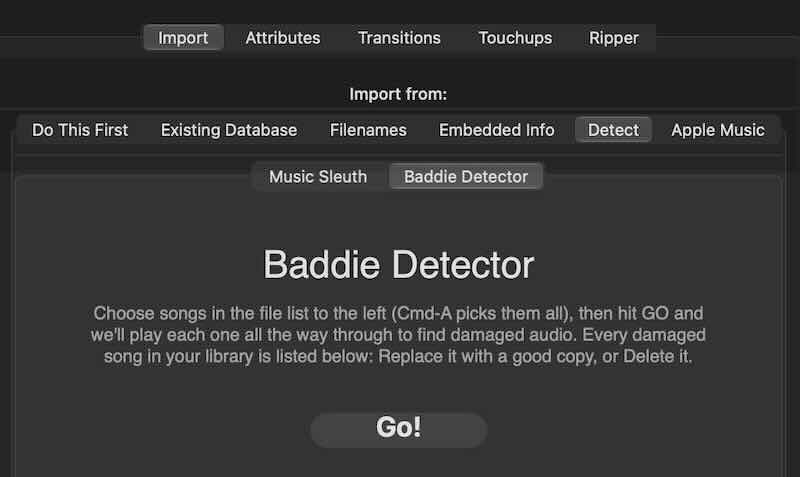
Select the songs you want checked, click Go!, and watch the list fill in. A song in red with the warning symbol is one where Librarian found a problem. A song with no mark is one where nothing wrong was found.
The point of all this is timing. You find out about a bad file while you may still have the original: the CD in the drawer, the download in your account, the copy on the old drive. You don't find out at 2 a.m. when the silence starts, with the source long gone.
Each song in the list has two buttons:
Cleaning up a whole batch? Tick the checkboxes, or use Select All, and click Delete Selected. One “Are you sure?” message tells you how many songs are going, and Undo Last Change puts the whole batch back. Nothing here is deleted for good, because everything goes to the Trash first.
Fixing a file outside Librarian works too. Put a good copy in place, and the flag clears the next time the song is checked or opened in Transitions.
TuneTracker apps share information with each other, and the Health field is where Librarian leaves its findings for the rest of the suite. Librarian's own AutoCue already skips damaged songs, and starting with ClockWork 1.1.181, TuneStacker keeps flagged songs out of your program logs too. It also leaves out any song whose file can’t be found when you generate, such as music on a drive that’s offline. See Damaged and Missing Songs in the ClockWork help.
Dead air is the one thing a station can't take back. A bad song in a log is a quiet risk that sits there for days or weeks until the clock reaches it. With a Baddie Detector that reads your songs all the way through, a risk like that is found early, shown plainly, and fixed from one list.
The Baddie Detector is part of Librarian, and it's built into TuneTracker System 7. To get it, choose Check for Updates in Librarian.
Librarian's Baddie Detector reads your songs all the way through, lists every damaged one, and lets you replace or remove it on the spot.
Learn About LibrarianTuneTracker System 7 is free. Professional radio automation for your Mac, with no time limit and no credit card.
Download FreeContinue Reading
Practical guides for broadcasters who care about their craft and their community.