If you work in radio, you already know the truth about automation software: you're going to be looking at it for a very long time. A four-hour shift. A morning drive. A full day of voice-tracking and log-tweaking. The radio automation screen is the one window you keep open all day, every day.
So here's a question we asked ourselves while building AutoCast: if you're going to stare at a screen for hours on end, why shouldn't it be a fun and pleasant place to be?
That's the philosophy behind AutoCast's appearance features. Most automation software looks the way it looks, and that's that. AutoCast is built to look the way you want it to.
Backgrounds That Change With the Day
Drag any image — JPG, PNG, TIFF, or HEIC — onto the open area of AutoCast's main window and it becomes your background instantly. No menus, no import step. If you'd rather see something new, drop in a different one.
But AutoCast can also change its background for you. Turn on Show time of day backgrounds and AutoCast swaps in a different image depending on the season and whether it's day or night. A bright summer afternoon looks different from a dark winter night, and your automation screen looks different too.
Set Up Time-of-Day Backgrounds
Check Show time of day backgrounds. The backgrounds that come with AutoCast take it from there.
Want to go a step further? Check Load current weather conditions backgrounds and AutoCast will show a rain or snow scene while it's actually raining or snowing at your station — using the weather it already pulls for your ZIP code — then return to the normal image when the precipitation stops.
It's a small thing, but glancing over at your screen and seeing a snowy evening while it's snowing outside your window is oddly satisfying.
Holidays, and Anything Else You Can Think Of
Because any image works as a background, seasonal themes are easy. Put up a holiday scene from our collection of backgrounds, available as a free download from our site, or use your own — a Fourth of July fireworks shot, the local high school's colors during football season, a photo of your town. When the season passes, drag a new image in. Prefer something quieter? Check Use a solid color background and pick any flat color you like.
Light Mode, Dark Mode
By default, AutoCast follows your Mac's appearance setting — Light when macOS is Light, Dark when macOS is Dark. But you may want a different look for your automation machine than for the rest of your Mac. There's an option for that: Dark Mode — AutoCast only forces AutoCast into Dark Mode even when the rest of macOS stays in Light.
Force AutoCast Into Dark Mode
Check Dark Mode — AutoCast only. Uncheck it to go back to following macOS.
For overnight shifts, a dim room, or a studio where a bright screen is a distraction, Dark Mode is a real relief on the eyes.
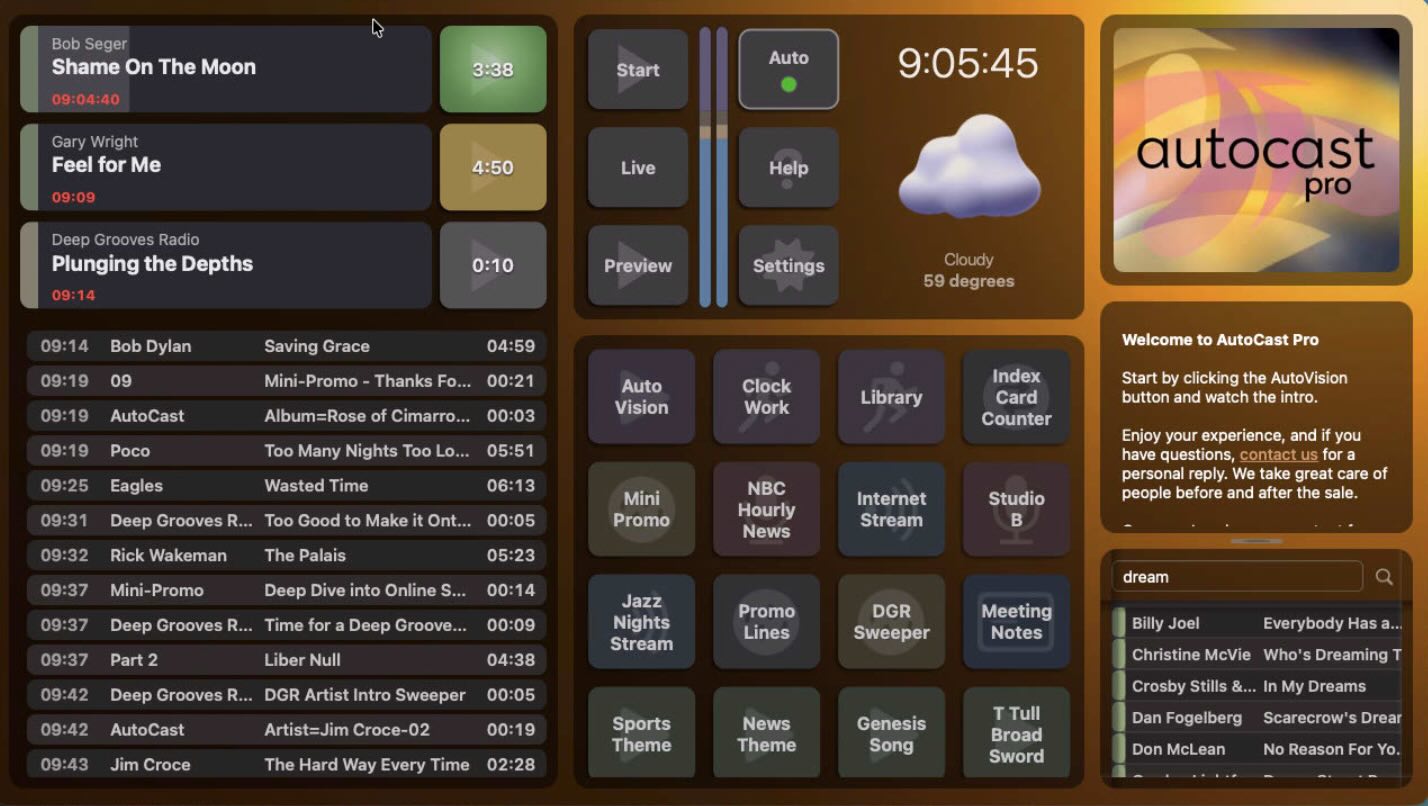
One thing worth knowing: Dark Mode uses its own dedicated look. It has its own default background, it holds off on the automatic time-of-day swapping so a bright daytime scene doesn't clash with the dark interface, and the Button Pad uses its own fixed dark palette. The button color schemes described next are a Light Mode feature.
Button Colors You Can Flip Through
The Button Pad — where your hot buttons, carts, and commands live — comes with a collection of pre-built color schemes, and you can change them without opening a single settings window. Just use the keyboard:
Change the Look on the Fly
⌘← / ⌘→ — step to the previous or next color scheme. The Message Pad tells you the name of the one you land on.
Keep pressing and flip through them all until you find one that feels right for your station.
From Gaudy and Brilliant to Grayscale
Color schemes are just the starting point. Two more sets of keys let you fine-tune whichever scheme you're on:
Brightness and Saturation
⌘↑ / ⌘↓ — make all the buttons lighter or darker, in 5% steps.
⇧⌘↑ / ⇧⌘↓ — make them more or less saturated, in 5% steps — all the way down to grayscale if you like.
Crank the saturation up and you get a loud, brilliant, hard-to-miss board. Pull it down and everything softens into muted tones; keep going and the whole Button Pad turns gray. Some people want a bright, energetic console. Others want something calm and quiet. Brightness and saturation work together, on top of whichever scheme you picked, so you can land on exactly the look you're after — and AutoCast remembers your settings the next time you launch it.
Put Your Own Logo on It
The last touch is the one that makes AutoCast feel like your station's software. Right-click the logo panel at the top of the right-hand column and choose Choose Station Logo… to put your own station logo where AutoCast's logo normally sits. If you ever want the original back, right-click and choose Restore AutoCast Logo.
Getting Your Logo to Look Its Best
Size: use an image that's at least 400 × 300 pixels (a 4:3 shape). Bigger is fine — AutoCast scales it down to fit.
Format: PNG, JPG, or TIFF.
Cropping: AutoCast fills the logo area edge to edge and trims whatever doesn't fit, so if your image isn't 4:3, a little may be cut off the sides or the top and bottom. Keep the important parts of your logo toward the middle, with some breathing room around the edges.
Your logo, your backgrounds, your colors. Suddenly the automation screen isn't a piece of software you use — it's part of your station.
Quick Checklist
- Backgrounds: drag any image onto AutoCast's window, or turn on time-of-day and weather backgrounds in Settings → Appearance.
- Holidays and themes: swap in a seasonal image whenever you like — or use a solid color background for a clean look.
- Light or Dark: follow macOS, or force Dark Mode — AutoCast only.
- Button colors: ⌘← / ⌘→ to flip color schemes.
- Brightness and saturation: ⌘↑ / ⌘↓ and ⇧⌘↑ / ⇧⌘↓ — from vivid to grayscale.
- Logo: right-click the logo panel and choose Choose Station Logo…
You're going to spend a lot of hours with this screen. Make it a place you actually enjoy.
Automation software doesn't have to look like automation software.
TuneTracker System 7 is built by people who know how many hours you spend with it. Free version available.
Download TuneTracker Free