You've just built a program log in ClockWork. It's got a time-correct at the top of the hour, an interrupt scheduled for a live break, maybe a weather announcement timed to :55. On paper, it looks right. But "looks right" and "actually fires correctly" are two different things — and the only way to know for sure is to watch AutoCast run through it.
The problem: the moment you actually care about might be four hours away. Nobody's setting up a station and then sitting around watching the clock until 9pm just to see if the hour turnover works.
That's what Mock Clock is for.
What Mock Clock Actually Does
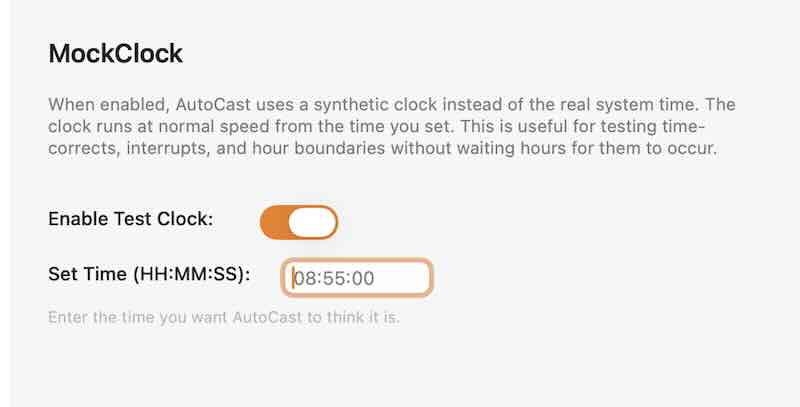
Mock Clock lives in AutoCast's Settings window, under the Clock tab. It's a simple pair of controls: a toggle to turn it on, and a field where you type in the time you want AutoCast to think it is.
Find It
AutoCast → Settings → Clock
Turn on Enable Test Clock, then enter a time in Set Time (HH:MM:SS) — the time you want AutoCast to believe it is right now.
Here's the part that makes it genuinely useful rather than just a novelty: once you set it, the clock doesn't freeze and it doesn't fast-forward. It runs forward at completely normal, real-world speed — just starting from wherever you told it to start. Set it to 08:55:00 and enable it, and five real minutes later, AutoCast believes it's 09:00:00. Every scheduling decision, every time-correct check, every hour-boundary marker, every interrupt — all of it reacts exactly the way it would on the real clock, just relocated to whenever you need it to be.
You're not waiting for the day to catch up to your program log — you're bringing the program log to you.
Why That Matters While You're Setting Up
Setting up a station means testing things that are, by design, supposed to happen rarely and at specific times: hour turnovers, time-corrects, scheduled interrupts, the moment a break command fires. Waiting for the real clock to reach those moments to confirm they work is slow, and it means your testing schedule is dictated by whatever time it happens to be right now — not by what you actually need to check.
With Mock Clock, you pick the moment. Want to confirm your 9am time-correct behaves the way you expect? Set the clock to 08:55:00, turn it on, and watch. Curious whether an interrupt scheduled for 2:30pm actually breaks in cleanly? Set it to 2:25pm.
This is especially valuable right after you've built or edited a log in ClockWork, when you want to walk through the whole thing end to end and confirm it plays out the way you designed it, without burning an actual day doing it.
A Quick Example
Say you've just added a live break at the top of every hour and you want to make sure it's wired up correctly before you trust it on air.
- Open Settings → Clock in AutoCast.
- Turn on Enable Test Clock.
- Set the time to a few minutes before the boundary you want to test — say, 08:57:00 for a 9am check.
- Save, and watch AutoCast's display. In real-world minutes, you'll see the clock climb toward 9:00:00 and the interrupt fire exactly as scheduled.
No waiting. No guessing. Just a compressed, on-demand rehearsal of a moment that would otherwise be hours away.
One Thing to Remember
Mock Clock is a setting, not a session — once it's on, it stays on, even if you quit and relaunch AutoCast. It's easy to flip it on for a quick test and then get pulled onto something else. Before you actually go on air, open Settings → Clock and make sure Enable Test Clock is switched back off. Otherwise AutoCast will keep operating on the offset time you set during testing instead of the real clock — which is a confusing thing to discover in the middle of a live broadcast.
A low-tech safeguard helps here: if you're going to leave Mock Clock on for a while — say, testing an entire log over the course of an afternoon — stick a Post-it note in the corner of the monitor that says "Running in Mock Clock mode." It costs nothing, and it's the kind of reminder that catches you (or whoever else walks up to that machine) before a wrong-time surprise does.
Quick Checklist
- Mock Clock is in AutoCast → Settings → Clock.
- It runs at normal speed from whatever time you set — it doesn't freeze or fast-forward.
- Use it to rehearse hour turnovers, time-corrects, and interrupts on your own schedule instead of waiting for the real clock to get there.
- It persists across relaunches — always double-check it's off before you go live.
- Leaving it on for a while? A Post-it note on the monitor saying "Running in Mock Clock mode" is a cheap, effective reminder.
None of this takes more than a few minutes, and it turns "I think this works" into "I watched this work" — before it ever has to work on real air.
Testing your setup shouldn't require guesswork — or a long wait.
TuneTracker System 7 is built to make broadcast automation something you can actually verify before you trust it. Free version available.
Download TuneTracker Free