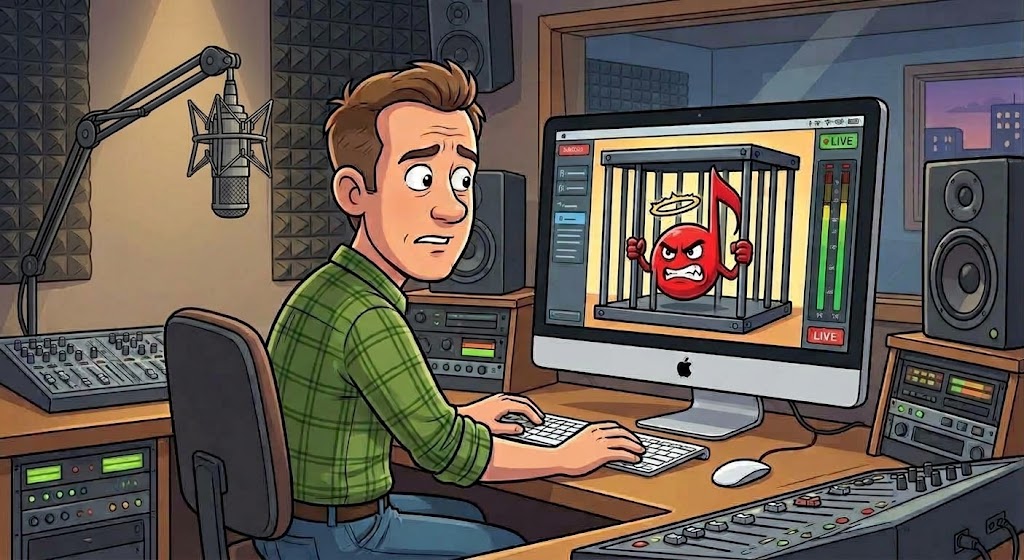
Ask a program director what the worst sound on the radio is, and you’ll hear the same answer: dead air. A song that should be playing and isn’t. Everyone on staff knows to listen for it, and when it happens in front of someone, it gets fixed.
The trouble is that damaged audio files come in three flavors, and only one of them is that obvious.
Three Ways a File Can Fail
- It won’t play at all. The file is in your library, it has a title and an artist, and the automation tries to play it. Nothing comes out. The system skips ahead, or sits there, and your listeners get silence where a song should be.
- It plays only part of the way. The song starts fine and then simply stops, or jumps to the next item, two minutes in. A download that was interrupted, or a copy that didn’t quite finish, can leave a file that looks like a normal song and holds only the first half of one.
- It plays with glitches. Clicks, stutters, a burst of digital noise, a second of dropout. The song is technically “playing,” so nothing alarms, but it sounds wrong.
Any one of the three hurts how your station sounds. Listeners don’t think “that file must be corrupt.” They think the station is sloppy, or that something is broken at the transmitter, or they just reach for another preset. A station that sounds polished for 99 songs and falls apart on the hundredth is still remembered for the hundredth.
Why These Problems Last So Long
Here’s the real hazard: nobody tells you. Unless a staffer happens to be listening at that moment, or a listener takes the trouble to call or email (and very few do), the problem is invisible. The song gets scheduled again next week, and the week after. Every time, the same hole, the same cutoff, the same glitch, and every time, no one is the wiser.
A bad file in a library of thousands can hide for a very long time. It might be a song that only comes around every few weeks. It might air at 3 a.m. with no one around. By the time anyone does notice, the original CD may be long gone, the download link expired, and the backup copy turns out to be damaged too.
A damaged file doesn’t fail once. It fails every single time it’s scheduled, until someone finds it.
That’s why it’s so important to become aware of your “baddies” and deal with them, rather than waiting for them to announce themselves on the air.
Step One: Scout for Suspiciously Small Files
The easiest place to start requires no special software. A file that’s far too small to be a real song is a strong sign something went wrong: an empty file, a download that stopped almost immediately, a copy that created the file and never filled it in.
A Quick Finder Check
Finder → your Music folder → List view → click the Size column
Sort by size, smallest first, and look at the top of the list. A full-length song in even a modest-quality MP3 usually runs a few megabytes; lossless files such as FLAC run much larger. Anything measured in kilobytes, or a song that’s dramatically smaller than the others of similar length, deserves a closer look.
Try playing a few of the smallest ones all the way through. You’ll often find silence, a fraction of a second of audio, or a file that won’t open.
This is worth doing. It will catch the worst offenders, the ones that are essentially empty. But it only goes so far, and you should know where it stops.
Where the Size Check Falls Short
A file’s size tells you how much data is there. It says nothing about whether the data is good. A file that cuts off partway through the song, or that contains a damaged stretch somewhere in the middle, can still be a perfectly ordinary size. It looks healthy in the Finder, and shows a normal length in your library. The damage sits quietly inside, waiting for the moment the song reaches that spot on the air.
The same goes for glitches. A file with a corrupted section looks like any other file from the outside. The only sure way to know is to read the audio from beginning to end and see whether it all decodes, and nobody has time to do that by hand for thousands of songs, let alone to sit and listen.
What We Built Into Librarian and ClockWork
We decided the answer was to let the TuneTracker apps do the reading, and to arrange things so that a baddie gets caught, kept off the air, and put in front of you. It works in three parts.
1. Detecting the baddies
Librarian’s Baddie Detector reads each audio file all the way through, the same way your automation would play it, and marks a song Damaged if it can’t be played to the end. That covers the file that won’t open, the one that fails partway through, and the one that’s suspiciously small. The partway-through kind, the one a size check could never find, is exactly what it was built for.
Run the Check
Librarian → Import → Detect → Baddie Detector → Go!
Choose the songs to check (or select your whole library), click Go!, and keep working. Librarian does the reading quietly in the background and marks each bad song the moment it’s found. It remembers what it has checked, so later runs skip files that haven’t changed and go much faster.
Librarian also looks at the moments when trouble is most likely to show up. A song is checked when you open it in Transitions, and a quick size check runs every time the library loads. So even if you never click Go!, many bad files get caught along the way.
2. Isolating them from your program logs
Finding a bad file does no good if the scheduler goes right on using it. So the flag Librarian sets, a Health field in your library marked “Damaged,” is shared with ClockWork. When TuneStacker builds your program logs, it leaves out any song with a damaged mark, for every Random, Fill and Rotate slot, including FeatureGuard picks. (This is part of ClockWork 1.1.180 and later.) The bad song stays in your library, but it can’t be selected, so it never gets a chance to hit the air.
TuneStacker also checks that each song’s file is actually there when you generate logs, so a disconnected drive or network share doesn’t put a missing file in your log either.
3. Alerting you, so you decide what happens next
Isolating a song silently would just trade one hidden problem for another, so both apps tell you what they found:
- In Librarian, a damaged song shows in the song list in red with a ⚠ symbol, and hovering over it gives the reason. The Baddie Detector also keeps a list of every damaged song, grouped by folder, with the file name and what went wrong (for example, that it fails near 0:16, or that the file won’t open).
- In ClockWork, the status line tells you when songs were left out of a batch (for example, “12 left out”), and the Logging tab shows how many were skipped because they were damaged or missing.
From there, the decision is yours, one song at a time or in a batch:
Replace or Delete
Replace… lets you pick a known-good copy of the song, from the original CD, a fresh download, or a backup. Librarian plays your chosen file all the way through first, and if it isn’t good either, it tells you and changes nothing. If it passes, the bad file goes to the Trash and the good one takes its place, keeping the song’s artist, album, genre, cover art and other details. The transition marks (EOM, Cue and Ramp) are cleared, since they were measured on the old audio, and AutoCue can set them again.
Delete moves the damaged file to the Trash and removes the song from your library. You can also check several songs and delete them in one step.
Nothing is deleted permanently, and Undo Last Change brings back the last Replace or Delete, including a whole batch.
And once the file has been replaced, there’s nothing to reset. Librarian clears the damaged mark by itself, and TuneStacker starts using the song again.
Finding Out While You Can Still Fix It
The timing is the whole point. Learn about a bad file today, and you may still have the CD, the purchase, or a backup copy to replace it with. Learn about it a year from now, after it has been quietly embarrassing you every few weeks, and you may be hunting for a track you can no longer get.
A quick scan of your smallest files is a good habit, and worth doing on any library you inherit or move. But the damage that does the most harm is the kind you can’t see from outside, and for that you want something that reads every song to the end. Run the Baddie Detector on your library, look at what it finds, and fix those songs. Then let it keep watch, so the next bad file gets caught before your listeners do.
Find your baddies before your listeners do.
Librarian’s Baddie Detector reads your songs all the way through, and ClockWork keeps anything it flags out of your program logs. Both are part of TuneTracker System 7.
Learn About Librarian
TuneTracker System 7 is free. Professional radio automation for your Mac, with no time limit and no credit card.
Download Free