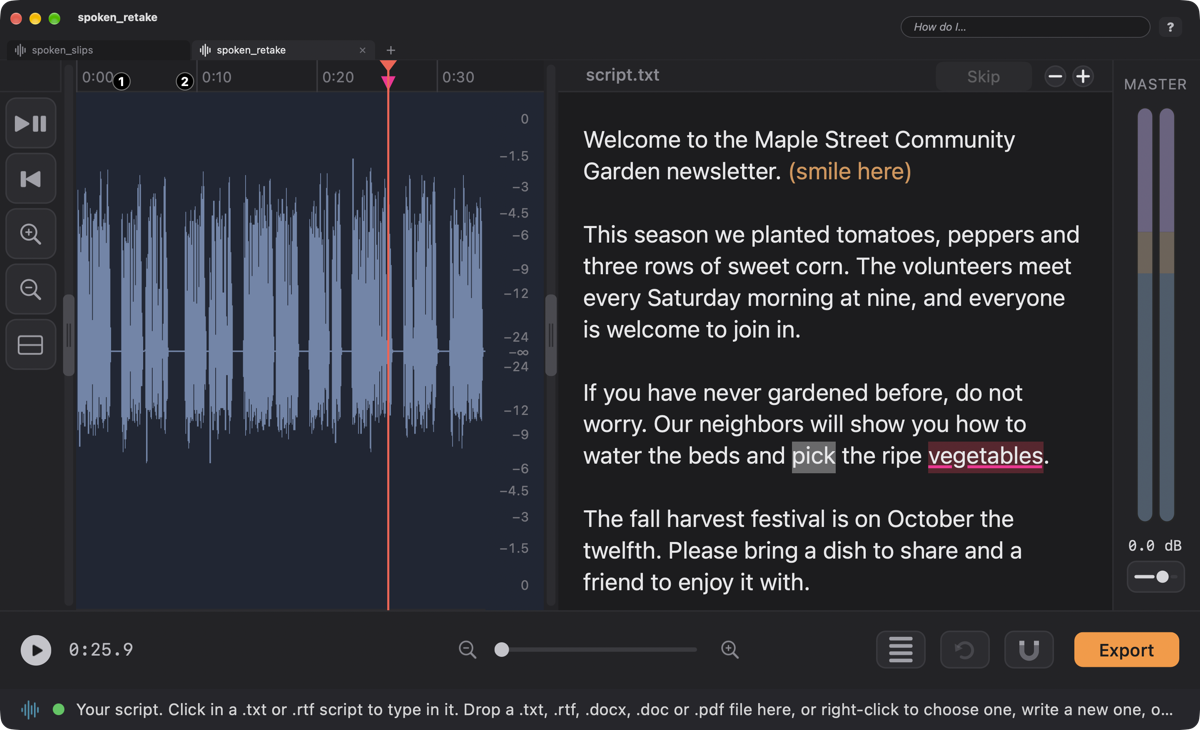
If you read from a script, you have probably said “the” when the page said “this” and never noticed. Single Track Mode can keep your script right beside the waveform, and with Follow-Along turned on it listens as you read and marks every word you said differently. Think of it as a proofreader who never blinks.
Tap ShiftV (with the waveform active) and the script pane slides out at the right of the waveform, in the drawer that also holds the Cookbook, the ClipView and the Keyboard Guide (one at a time, whichever you asked for last). Tap ShiftV again to put it away; it comes back to the width it last had, and you can also drag its bar.
Open FastTracker ▸ Settings…, click the Recording tab, and tick Follow-Along in the strip at the bottom. It needs macOS 26 or later (on an older Mac the box is greyed out), and the first time it may fetch Apple’s speech files, so be online. The full story is in Follow-Along.
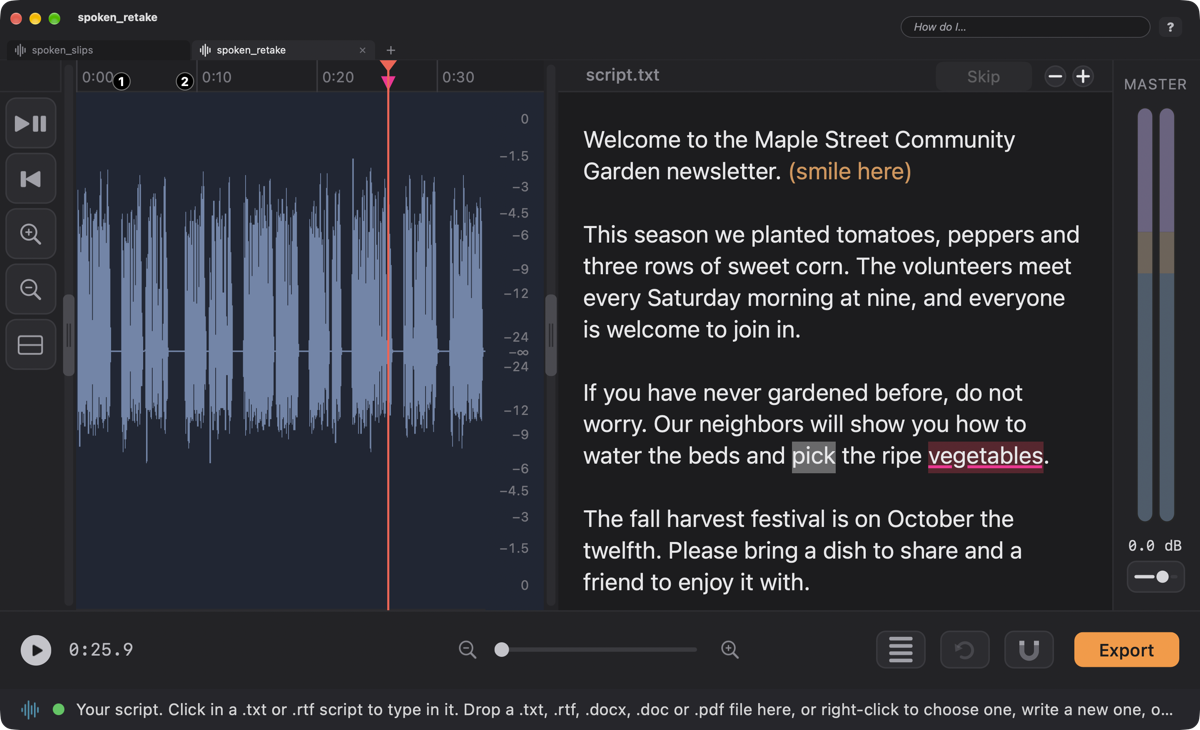
Follow-Along is easy on you and strict about slips. It lets through “two” for “2,” money, percents, names, words that sound alike, and a different ending. A little word (“in” for “and”) swapped for another, or a word you added, gets a “check this” flag, a hollow pink triangle in the strip under the ruler, so you can listen and decide. Where you read a line again, numbered circles (1, 2, 3) mark the takes. It would rather miss a real flag than cry wolf.
A script often holds words that are not for reading aloud: a title, a producer’s note, “(pause here).” Drag across them in the script pane and click Skip in the pane’s header. They turn amber and are never flagged. Select amber words and the button says Don’t Skip. A producer’s note without brackets (a b-roll line, a heading) has to be marked with Skip yourself, or it counts as words you never read. Anything in ( ) or [ ] is skipped for you, automatically, when a script is loaded and as you type or paste it.
Recorded without Follow-Along, or edited since? Choose Script ▸ Sync Recording to Script. FastTracker listens to the recording much faster than real time and lays the script and the flags against it. If the script is not the one you read, it says so and changes nothing. A project synced in an earlier version should be synced again, to get the newer flags.
Keeping the flags. Everything Follow-Along knows (flags, word positions, skips) is saved inside a FastTracker project. A plain audio file can’t hold it, so if you save audio from a recording with flags, FastTracker warns you first and offers to save a project instead. Lesson 4 shows how. Changing the script itself erases its flags (it asks first).