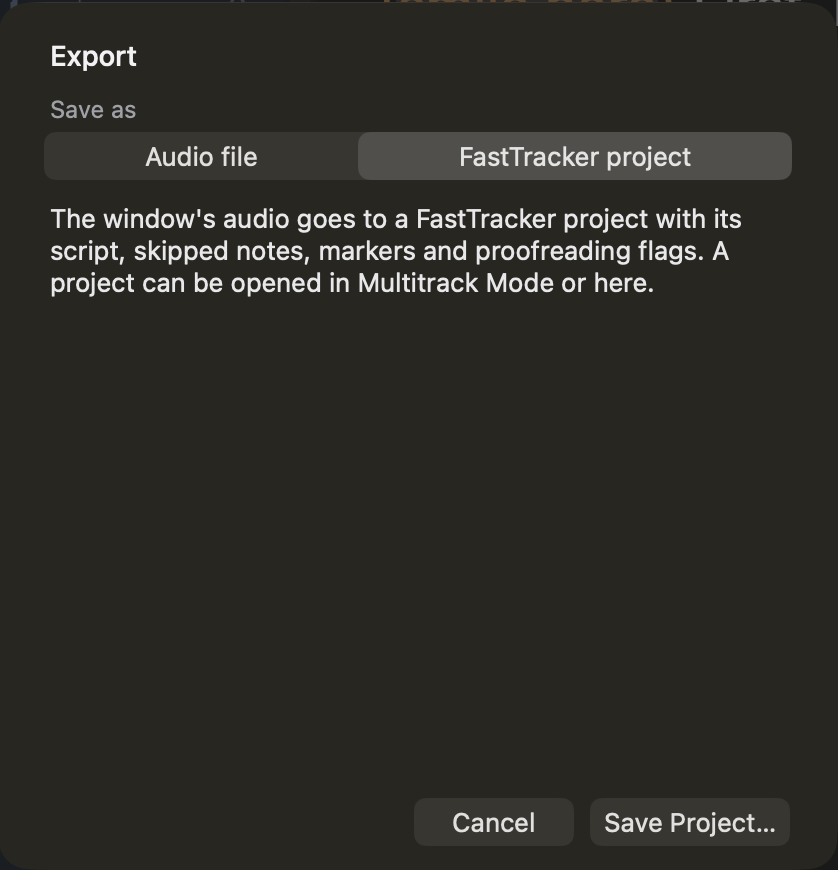
| Choose | When |
|---|---|
| Audio file | You are done and want a WAV, MP3 or another format to send out. Pick the format and settings; mark a selection first to save just that part. See Exporting. |
| FastTracker project | You want to keep working, or keep the script, markers and proofreading flags. The window’s audio goes to Track 1 of a project. |
If the recording has a script or proofreading flags and you choose Audio file, FastTracker asks whether to save them too. Yes writes a small .ftdata file beside the audio (same name), and opening that audio file again brings the script and flags back. See Save As and Export.
⌘W closes the window. If you have unsaved work it asks first.
The column of buttons at the left of the waveform starts with Play, Go to Start, Zoom In, Zoom Out and Return to Multitrack Mode. Make it yours:
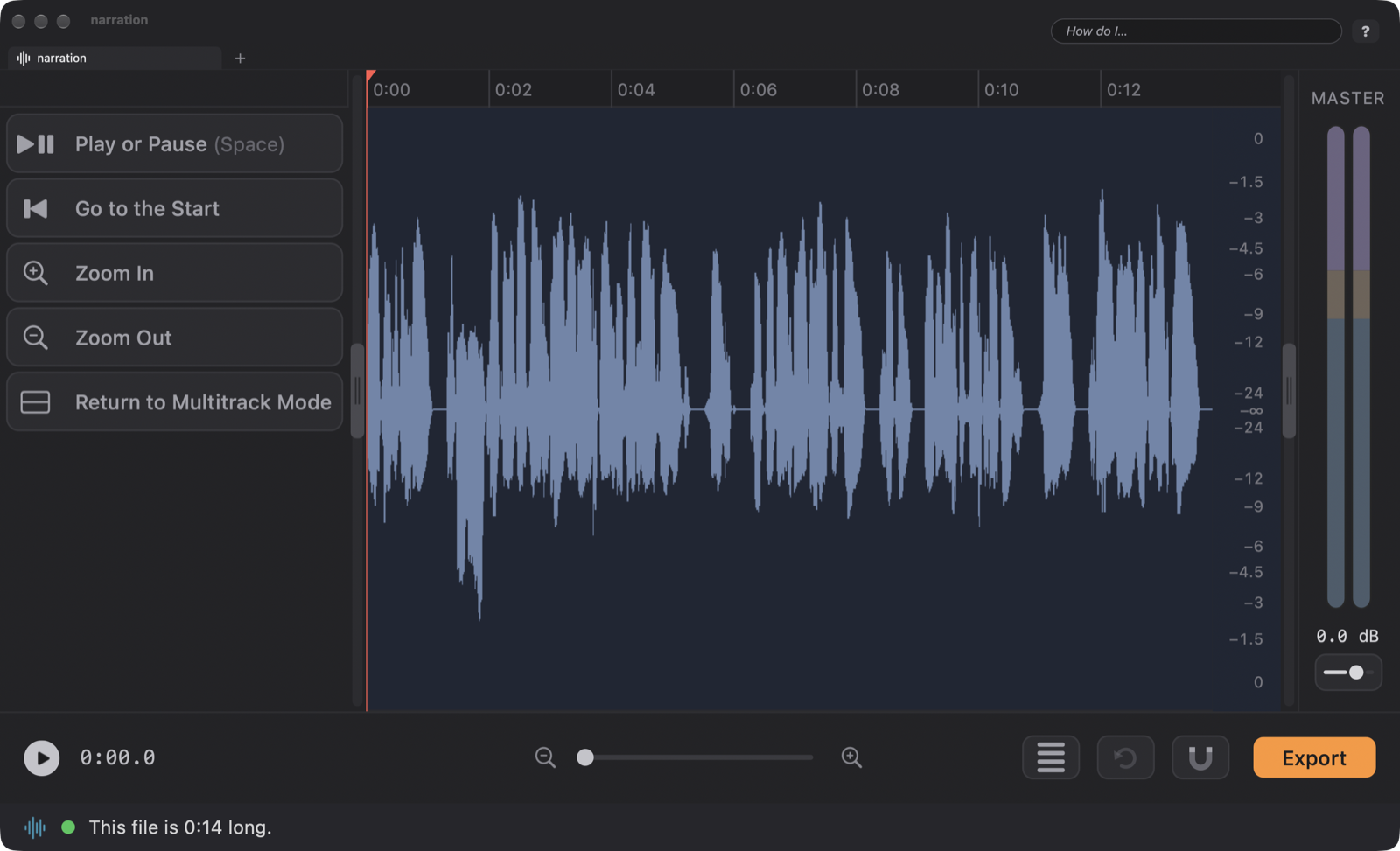
Put the things you do on every recording on the bar: Normalize, Fade Out, Show ClipView. Then a whole polish is a few clicks.
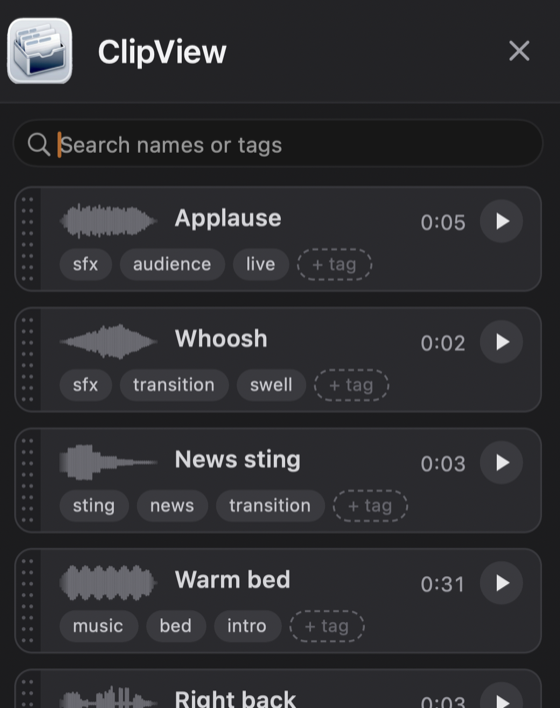
If you reuse the same sounds (a sign-off, a bed, a sting), keep them in ClipView. Tap I to open it in the drawer at the right edge. Mark a selection and choose Clip ▸ Add Selection to ClipView (or right-click ▸ Add to ClipView), give it a name and a few tags, and it is there for every project from then on. Double-click a card to put it in at the playhead.
Sooner or later you will want music under that voice. Click the Mode Button (lower right, just left of Undo). A file you opened or recorded goes to Track 1 of the project behind it (if that project is still empty), with its markers and script, and your file is never changed. From there, the Multitrack lessons pick up the story. And when you need to polish just one track, the same button brings it back to the window; what you change returns as a new track named “…, Edited” below the original.
That is the whole of Single Track Mode. For every detail, keep the Single Track Mode reference page handy, and for every key, tap K.