Why You're Reading This
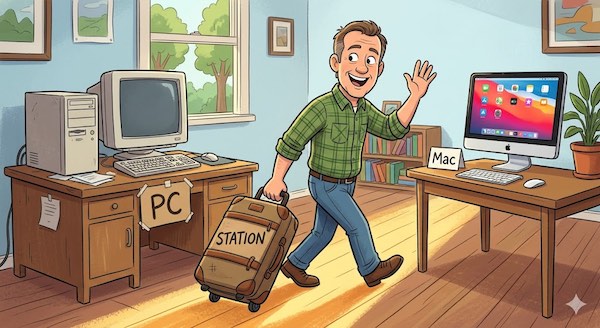
You've done the philosophical reading. You've decided the Mac is the better platform for what you're trying to do. We've made that case in Why Not Windows, in Macs Are Moving In, and in Why Macs Cost Less, and we won't repeat any of that here. The question now is operational: how do you actually move an existing radio station, currently running on Windows automation, onto a Mac, without taking the station off the air or losing what you've built?
The good news is that this is a well-understood project at this point. A lot of stations have done it. The pattern is predictable, the surprises are mostly pleasant ones, and the only real risk is rushing it. So don't rush it. Here's the plan.
The Core Principle: Parallel, Not Cutover
The single most important rule of this migration is: do not flip a switch from Windows to Mac in one moment. Build the Mac side completely. Get it running everything. Verify it for at least a week, ideally longer, in parallel with the working Windows system. Only then move the actual on-air feed.
Stations that try to cutover in one move find themselves troubleshooting on the air, with listeners hearing the troubleshooting. Stations that build out the Mac side as a complete shadow of the Windows side, prove it for a couple of weeks, then redirect the transmitter feed when it's already proven, never have a bad moment. Take the longer path. Listeners won't know any of this is happening, and that's exactly the goal.
Phase 1: Build the Mac Setup
Start by getting a Mac in place and configured the way you want, before you move a single audio file or schedule. This is the same work covered in detail in From Box to Broadcast: Setting Up Your All-in-One Mac — hardware selection, storage layout, audio routing, OS tuning, software stack, reliability layer, remote access. Walk that guide and finish it before you move on.
For a migration, the practical recommendation is to buy the Mac before you start the project, not at the end of it. The Mac sits on a desk somewhere in the building — not on the air — while you build out the new station-in-miniature on it. The Windows machine keeps running the actual broadcast the whole time.
Phase 2: Move the Library
Your audio library is the biggest piece of cargo in this move, and the part most stations underestimate.
Audio Files Themselves
The good news: standard audio formats — MP3, AAC, WAV, AIFF, FLAC — transfer cleanly between Windows and Mac. There's no format conversion required. The bytes are the bytes. If you can read your library on Windows, you can read it on the Mac.
The practical mechanism is a network share or a sneakernet copy. For a multi-terabyte library, a USB drive moving files between the two machines is often faster than the network. For smaller libraries, an SMB share between the Windows box and the Mac works fine. Either way, end up with the library sitting on the external drive you set up in Phase 1, organized the way you want it on the Mac side.
Folder Structure
Resist the urge to copy the Windows folder structure exactly as-is. The migration is your one chance to clean up years of accumulated structural drift — misnamed folders, songs in the wrong category, old project files left in the music tree. A few hours spent during the migration laying out a clean, intentional folder structure on the Mac will pay back for years afterward. Move audio in groups, not one big copy, and impose order as you go.
Metadata
Where stations get hurt is metadata. The tags inside MP3 and AAC files (ID3, iTunes tags) come over cleanly. The metadata inside your Windows automation system — intro/outro markers, category assignments, scheduling data, play history, notes — does not, because that data lives in the Windows automation's database, not in the audio files.
You have two options. Option A: export what you can from the Windows system as text or CSV, and use that to bulk-set categories and markers in your new Mac library tool. Most automation systems can produce a song dump. Option B: rebuild the metadata from scratch on the Mac side. This sounds painful, and it is, but it's also a cleansing event — you end up with markers and categories that match how the station actually sounds today rather than how it sounded eight years ago when somebody set them up.
For most stations, the right answer is a hybrid: bulk-import what's clean (artist/title/category), and re-do what isn't (intro/outro markers, hooks, special-use flags) by hand or in batch as part of the move.
Phase 3: Recreate Your Clocks
Format clocks — the hour-by-hour blueprints that drive your scheduling — will not transfer mechanically. Each automation system represents clocks differently. The clocks themselves are conceptual: you'll need to recreate them on the Mac side, but you don't need to invent them from nothing. (If clocks are unfamiliar territory, our piece on Understanding Format Clocks covers the structure and logic.)
Document What You Have
Before you start rebuilding, take an inventory of every clock currently in use on Windows. Morning drive, midday, afternoon drive, evenings, overnight. Weekday vs. weekend. Special clocks for fundraising drives, holiday programming, individual shows. Print each clock or export it from the Windows tool. You're going to recreate every one of them on the Mac side.
Translate, Don't Copy
The natural tendency is to recreate every clock to be byte-identical to the Windows version. Resist. While you're rebuilding, look at each clock and ask: is this still doing what I want? Are the stop sets in the right places? Is the category mix still tuned correctly? Are there voice-track positions that nobody uses anymore? The clocks have probably drifted over the years; this is your chance to clean them up. The station that comes out of the migration should sound a little better than the one that went in.
Categories First, Clocks Second
Set up your music categories on the Mac side before you start building clocks. The clock can only call categories that exist. Standardize the names, decide which legacy categories to consolidate or retire, and only then start designing clock layouts that reference them.
Phase 4: Move Production Assets
Beyond music, your station has production work that needs to come over: imaging library (sweepers, jingles, station IDs, drops), commercial spots, underwriting reads, promos, voice tracks, features, and the production projects behind them.
- Finished assets — the rendered audio files of your imaging, spots, and promos — transfer the same way music does. They're standard audio files. They land on the Mac library drive in the appropriate folders.
- Production project files are trickier. If your spots were built in a Windows-only DAW, the project files won't open on the Mac. You'll keep the rendered audio (which is what actually goes on the air) but lose the editable session. For most spots that's fine — nobody re-edits a six-month-old promo — but if there are evergreen pieces you re-cut occasionally, plan to re-record or rebuild them in your Mac production tool.
- Voice tracks are usually rendered audio files like everything else. They come over fine. Going forward, your voice trackers will be using a Mac-side workflow, which is itself a chance to standardize templates and approaches.
Phase 5: Run Both Systems in Parallel
This is the safety net. Once the Mac side is built — library imported, clocks designed, production assets in place, automation software configured — run it for one to three weeks without putting it on the transmitter feed.
Practically, that means:
- The Mac runs full schedules, hour after hour, just as if it were on the air. Logs generate. Audio plays. Voice tracks fire. Everything except the actual transmitter line.
- The Windows system stays on the air, doing its real job, the whole time.
- Each day, listen to the Mac feed (out the audio interface to a monitor, or out to a private internet stream) and audit it against what's actually airing.
- Note every difference, every error, every missed segue, every category mistake. Fix them.
- By the end of a week, the differences should be nearly zero. By the end of two weeks, they should be zero.
If the Mac system goes a full week reliably, with audio quality matching or exceeding what the Windows side produces, the technical migration is essentially complete. The only thing left is the operational handoff.
Phase 6: Train Your Staff
This is the phase most often skipped, and most often regretted. The voice trackers, the morning host, the production person, the volunteer board op — they've been working on Windows automation. Now they're going to be working on Mac. Even when the underlying logic is the same, the keyboard shortcuts, the menu structures, the file-save dialogs, and the right-click conventions are different.
Don't wait until the day of the switchover to introduce people to the new system. Once Phase 5 is running, start walking people through the Mac side. Have voice trackers record their next batch on the new rig. Have the production person edit a real spot in the new tool. Have the board op pull a log on the new system. Find out what's confusing, what's missing, what they don't like — before the switch matters.
Allow extra time. Some staff members will love the change immediately; others will be sure the new system is broken because it doesn't work the way the old system did. Both reactions are normal. Both fade once the new system is just "the system we use."
Phase 7: The Switchover
Pick a day. Not a Monday morning. Not the start of a fundraiser. A quiet weekday afternoon during a lightly-staffed daypart is ideal — ideally during a music sweep where any small hiccup gets absorbed by the format.
Practically, the switchover is simple: redirect the transmitter feed (and any stream encoders) from the Windows audio output to the Mac audio output. The Mac is already running its schedule. The audio is already correct. You're just rerouting the wire.
Stay in the building for the first 24 hours. Listen actively. Have somebody at the station for the first overnight. The Mac side has been running for two weeks, but the transmitter feed has not, and the small things you find in the first day — a category that needs adjusting, an imaging element that's slightly off-level, a voice-track sequence that lands wrong — are easier to fix while you're sitting at the desk than while you're at home.
By 48 hours in, the station is running normally. By a week in, the migration is something that happened, not something you're still doing.
What You'll Find Yourself Surprised By
A few things stations consistently report after the move:
- How much quieter the studio gets. The Windows tower with its fans was making more noise than you realized. A Mac mini is silent.
- How much smaller the IT footprint becomes. Three Windows machines collapse into one Mac, plus the production tasks that used to require a separate PC.
- How much faster boot, login, and app launch get. Apple Silicon hardware is genuinely fast. The "where did the loading time go" feeling is real.
- How few problems show up at 3 AM. The Mac doesn't reboot itself. It doesn't pop up update dialogs. It doesn't trigger antivirus scans during the overnight log. The kind of small interruptions that defined Windows automation just… aren't there.
- How much you didn't actually need that Windows tower. Most stations realize, a month or two in, that all the supplementary Windows hardware they kept around for "just in case" is no longer needed. The Mac is doing the job.
What to Do With the Old Windows Machine
Don't throw it away yet. For the first six months after the migration, the old Windows automation system makes an excellent cold backup: a known-working playout machine you could feed to the transmitter in an emergency. Keep it powered down or on standby, with its library and last-known schedule intact, until you've fully proven the Mac side through a couple of busy operational events — a holiday weekend, a fundraiser, a weather emergency.
After six months of clean Mac operation, the Windows machine can come out of service. Some stations donate them, some redeploy them as office machines, some simply turn them off and leave them in the closet. The Mac will outlast it either way.
What This Migration Actually Costs
Realistically, a small to mid-sized station migration takes:
- One Mac. Mac mini in the small-station case. Detailed in Which Mac for Radio.
- An audio interface and a couple of external drives if you don't already have them.
- Two to four weeks of project time, depending on library size and number of clocks. The actual hands-on hours are smaller than the calendar time — most of the elapsed time is the parallel-running shakedown.
- A few hours of staff training, spread across the people involved.
- The new automation suite. TuneTracker has a free version that can carry a small station indefinitely; paid editions scale up from there.
Stations that go through this migration almost universally report, six months later, that they should have done it sooner. The on-air rig is more reliable. The staff is happier. The IT closet is quieter. The math — once you account for everything, as we did in Why Macs Cost Less — works out in favor of the Mac.
The Other Side of the Move
The migration project ends. The station keeps running. What you have, after the dust settles, is an on-air rig that you don't have to think about — one that doesn't reboot itself, doesn't update without permission, doesn't make excuses. Production happens on the same machine. The library is cleaner than it was. The clocks are tuned a little better. The audio sounds, to your ear, a little crisper, because Core Audio actually is a cleaner audio path.
None of that is dramatic. It's just… working. After a while, you forget you ever ran on Windows. The on-air machine is just the Mac in the corner, doing what it's supposed to do, day after day after day. That's the destination. The migration is just the path to get there.
The Mac side of the migration, ready when you are.
TuneTracker is a complete radio automation suite for macOS — playout, scheduling, library, and streaming — designed to be the destination platform for stations leaving Windows behind. There's a free version you can try before you commit. Start the parallel run today.
Download TuneTracker Free